From Coupang,
straight into UUP
One button adds the product you’re looking at — photo and name included — to your UUP page and copies its affiliate link. It currently supports Coupang product pages. Here’s how to install and use the Chrome extension “유유피 제휴 링크 도우미” (UUP Affiliate Link Helper), step by step with photos.
It isn’t on the Chrome Web Store yet, so for now you install it yourself in developer mode.
You’ll need
- Chrome on a computer
- Basic plan or higher
- Coupang Partners integration
At a glance
Download
Get the zip file and unzip it.
Install
Load it in developer mode on Chrome’s extensions page.
Add
Click “유유피에 담기” on a Coupang product page.
Install
You only do this once. Follow the seven steps in order.
Download the extension file
Click “Download the extension” to save the zip file. The same button is at the top of this guide and on the Chrome extension screen in your dashboard.
Download the extensionv0.2.0 · zip 25KBNoteOnly install the extension file downloaded from UUP (uup.kr). If you got the file anywhere else, don’t use it — delete it.
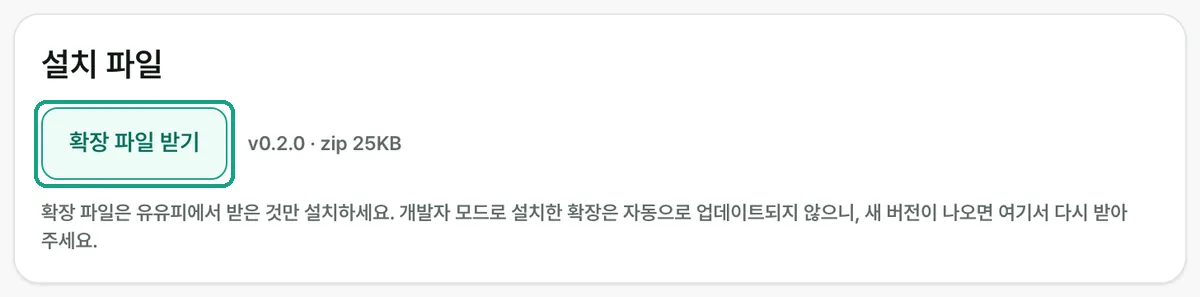
Fig. 01The “Download the extension” button, with version and size Unzip the file
Unzip the downloaded file: on a Mac, double-click it; on Windows, right-click it and choose “Extract All…”. You’ll get a uup-extension-preview folder — if you’d rather keep it somewhere else (like your Documents folder), move it there before installing.
NoteDeleting or moving this folder removes the extension. Leave it where it is after installing.
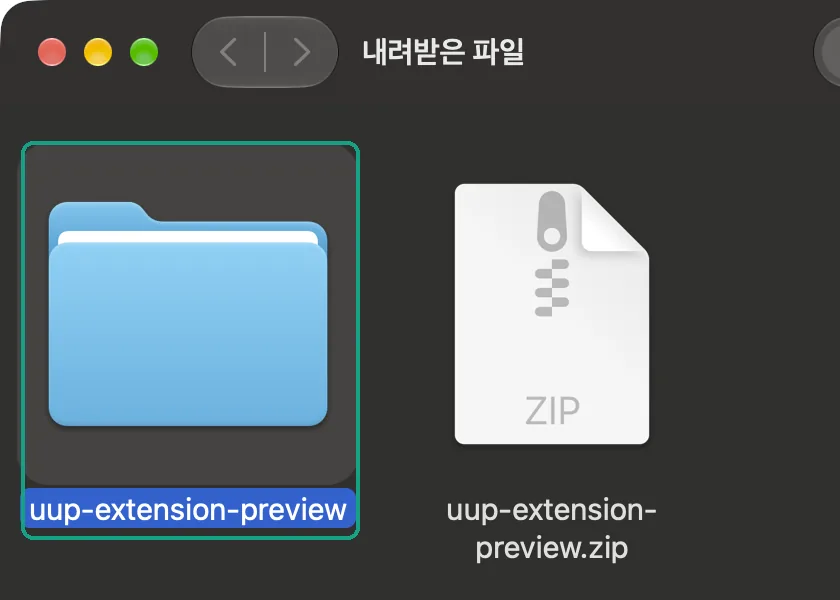
Fig. 02The uup-extension-preview folder you get by unzipping Open the extensions page and turn on developer mode
Paste the address below into Chrome’s address bar to open the extensions page, then turn on the “Developer mode” switch at the top right.
chrome://extensionsNoteFor security, chrome:// addresses can’t be opened from a link. Copy it and paste it into the address bar.

Fig. 03The “Developer mode” switch at the top right Click “Load unpacked”
With developer mode on, three buttons appear at the top left. Click the first one, “Load unpacked”.
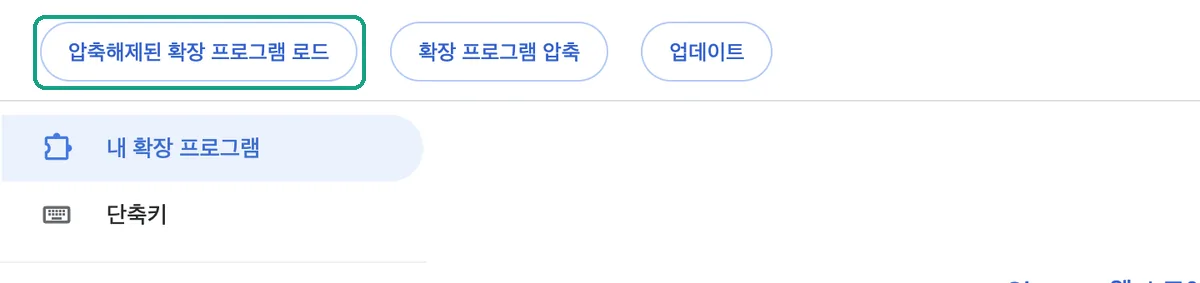
Fig. 04“Load unpacked”, the leftmost button Choose the uup-extension-preview folder
In the window that opens, choose the uup-extension-preview folder you unzipped in step 2 and click “Select” (“Select Folder” on Windows). It’s the folder with manifest.json directly inside.
NoteChoose the unzipped folder, not the zip file.
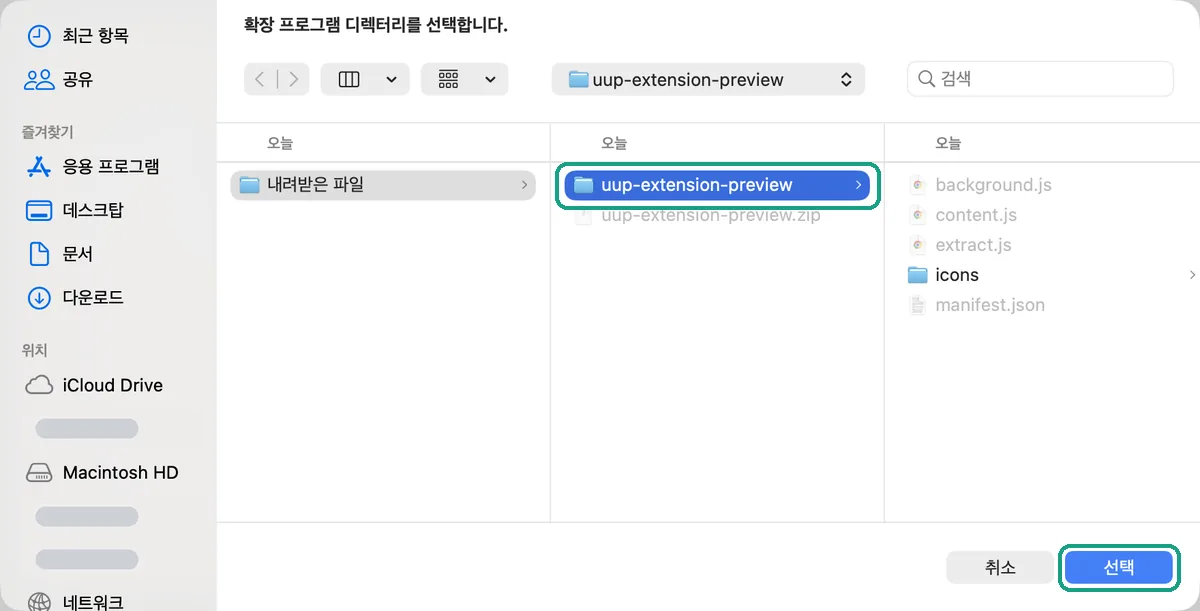
Fig. 05Choose the uup-extension-preview folder, then “Select” Check the list
When “유유피 제휴 링크 도우미” (UUP Affiliate Link Helper) appears in the extensions list, you’re done. Check that the version next to its name matches the one at the top of this guide.
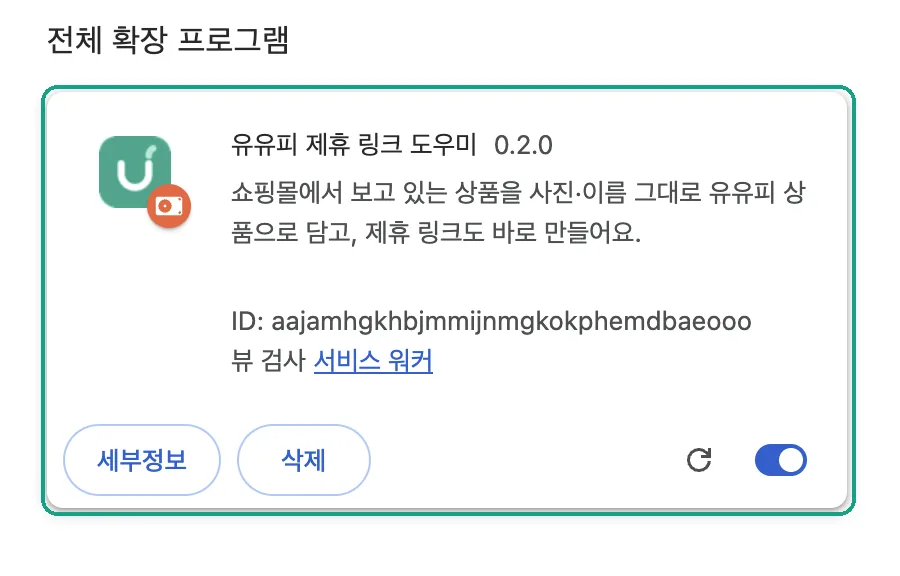
Fig. 06“유유피 제휴 링크 도우미” in the extensions list Pin it to the toolbar
Click the puzzle icon next to the address bar, then the pin next to “유유피 제휴 링크 도우미”, and the UUP icon stays in your toolbar. It’s optional, but handy.

Fig. 07The UUP icon and the puzzle icon in the toolbar
Use
Once it’s installed, try it right away on a Coupang product page.
Click “유유피에 담기” on a Coupang product page
Open a Coupang product page and a green “유유피에 담기” (Add to UUP) button appears at the bottom right. Click it to open a small UUP window. The UUP icon in the toolbar does the same.
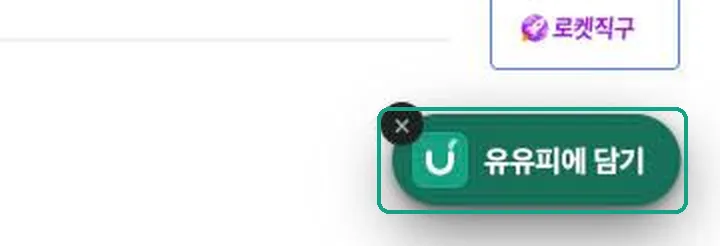
Fig. 08“유유피에 담기” at the bottom right of a Coupang product page Check the product in the small window
The window shows the product’s photo and name — click the name to edit it. It uses the UUP account you’re signed in to in this browser, so there’s nothing to connect. If you aren’t signed in, the window shows you where to sign in.
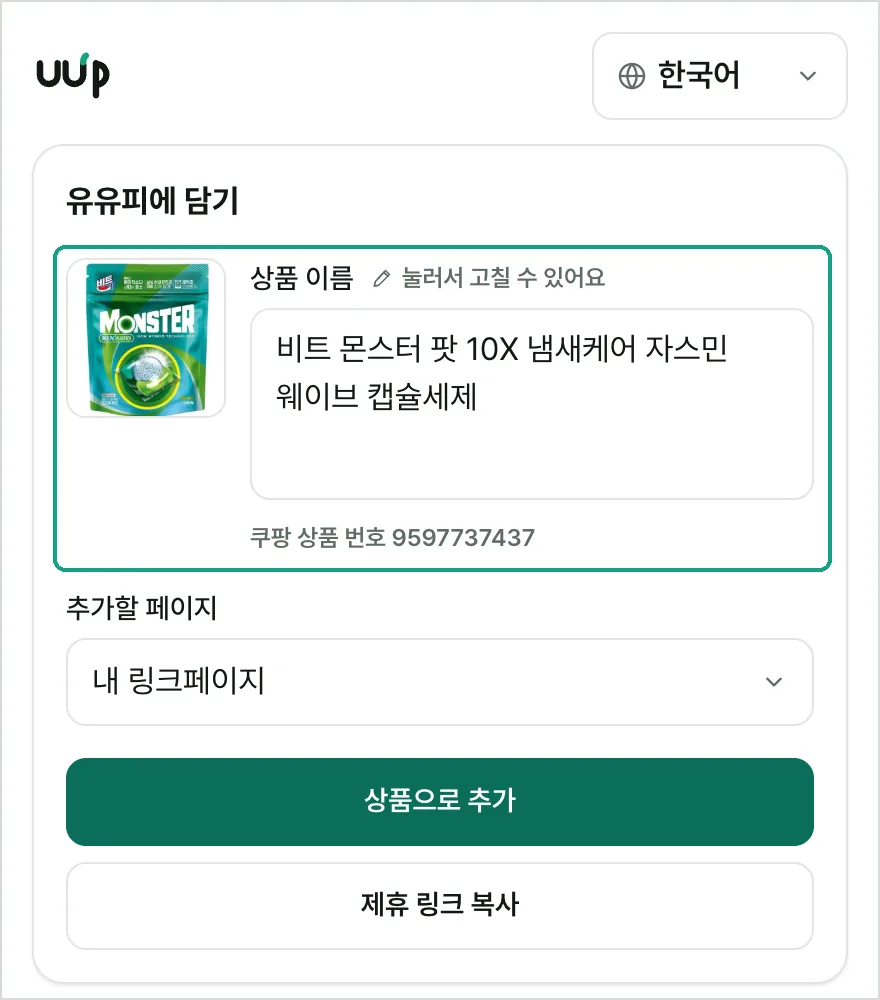
Fig. 09The small UUP window — product photo, name, and the page to add to Add it as a product, or copy the affiliate link
Choose a page and click “Add as product” to create a product on that page with the affiliate link, name, and photo. If you only need the link, click “Copy affiliate link”. When you’re done, click “Close window” or “View in editor”.
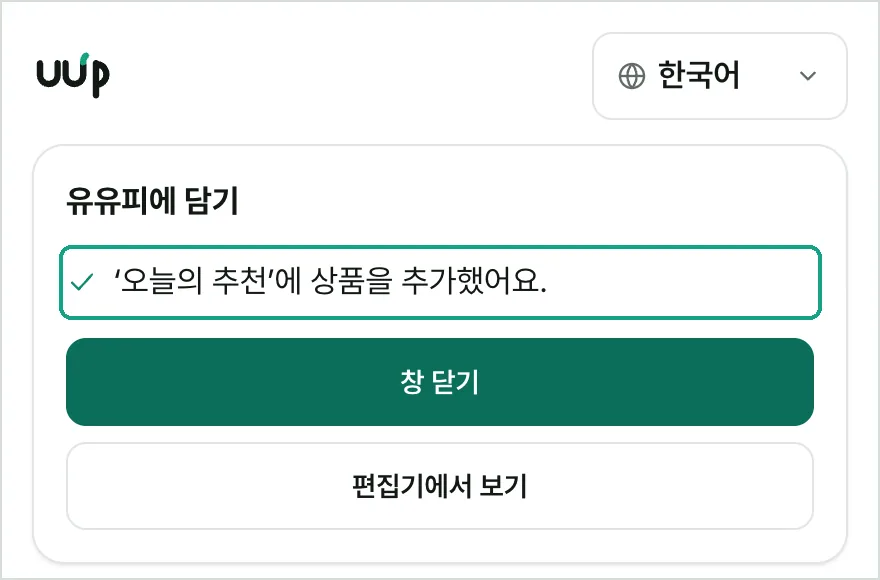
Fig. 10Added — close the window or view it in the editor
Handy tips
Move the button
Drag the “유유피에 담기” button wherever you like. Its spot is remembered, so it shows up there on other product pages too.
Back to the start
After you move the button, a ↺ appears at its top right. Click it to put the button back at the bottom right.
Hide it on this page
Click the × at the button’s top left to hide it on that page only. It comes back when you reload or open another product page.
The toolbar icon works too
If you hid the button or can’t see it, click the UUP icon in the toolbar — the same window opens.
Just copy the link
If you only need the affiliate link, click “Copy affiliate link” in the window instead of adding a product.
Good to know
- Updates
- Extensions installed in developer mode don’t update automatically. When a new version is out, download it from this guide again, overwrite the same folder, and click the extension’s reload (↻) button in chrome://extensions. Current version: v0.2.0.
- Where to get it
- Only install the extension file downloaded from UUP (uup.kr). If you got the file anywhere else, don’t use it — delete it.
- Developer-mode notice
- Chrome may show a notice about developer-mode extensions when it starts. Close it and keep using the extension.
- Chrome Web Store
- We’ll announce it in this guide once it’s on the Chrome Web Store. Then remove this version and install the store version.
- Earlier version (0.1.x)
- The new version doesn’t need connecting. If you connected an earlier version, you can disconnect it in the dashboard under Settings › Security › Chrome extension.
- Language
- The extension’s own labels on Coupang pages (such as the “유유피에 담기” button) are in Korean, and the photos in this guide show Korean screens. The UUP window it opens follows your UUP language.
Stuck, or it won’t install?
Tell us which step you’re on and we’ll work it out with you.
유유피 제휴 링크 도우미 (UUP Affiliate Link Helper) v0.2.0 · Install & usage guide