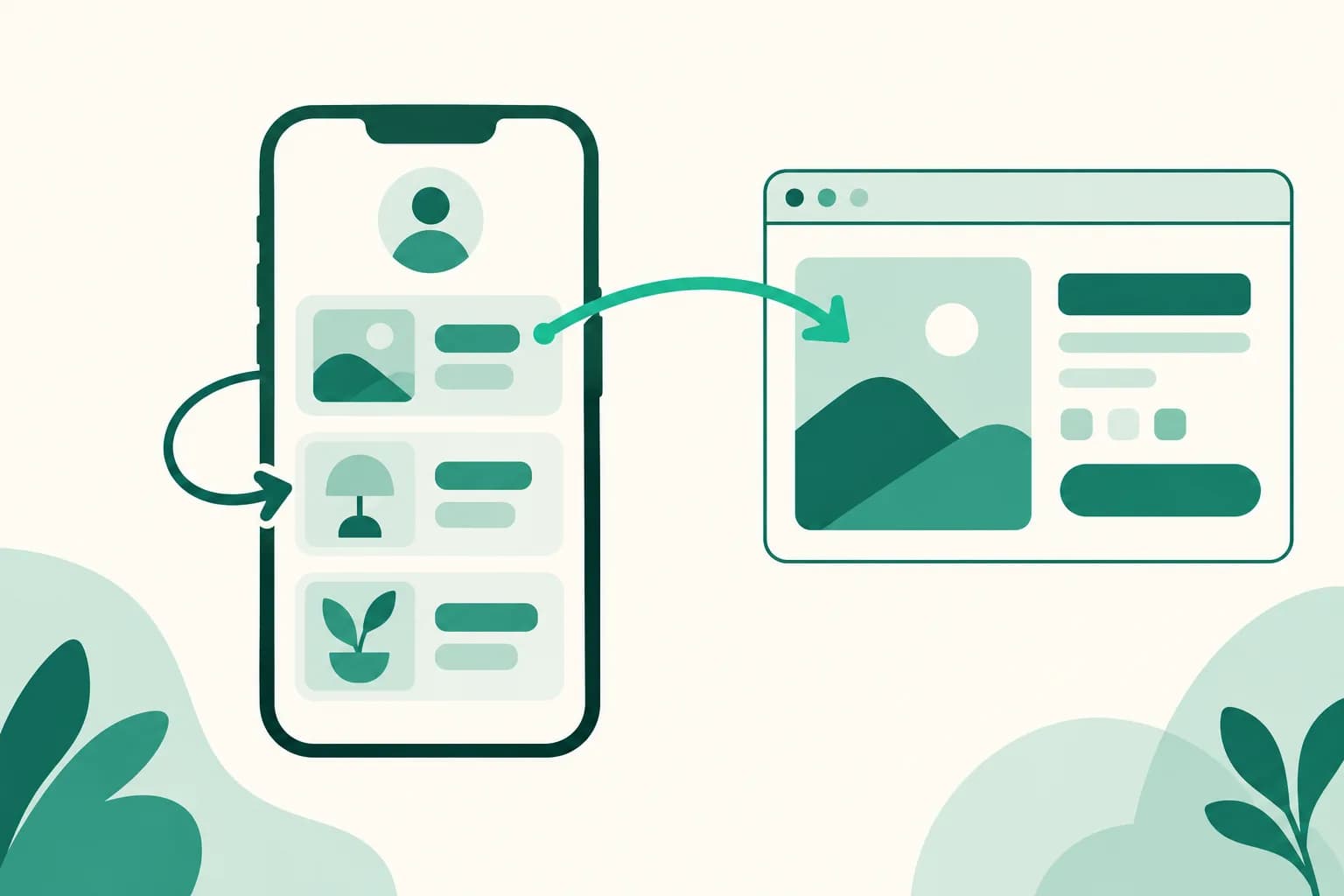
Choose whether a product link opens in the same window
Until now, tapping a product or a linked banner on your public page always opened it in a new window (new tab). Now you can turn on Open in the same window for each product, and visitors go to that link right in the window they were browsing. If you leave it off, it opens in a new window as before.
What it does
- The product editor has a new Open in the same window switch. You set it for each product separately.
- The switch is off by default. Every product you've already made keeps opening in a new window.
- For banners, the switch appears once you enter an address in the Link (optional) field.
How to use it
- Under Pages in your dashboard, open the page and press Edit on the product you want to change.
- Turn on Open in the same window.
- Press Save and it applies to your public page right away.
Good to know
- For links that jump to an app, like Coupang, we recommend a new window. With a new window, your page is still there when visitors come back from the app.
- Visitors who open your page inside the TikTok app always get a new window, whatever the switch says. In the TikTok in-app browser, moving within the same window can end on an error screen.
- Ingredients tapped on a recipe's Start cooking screen always open in a new window, so visitors don't lose the step they're on.
- Clicks are counted the same way whichever window the link opens in.
If you have questions, ask us in the chat at the bottom right of your dashboard.