Link page — one address that gathers all your products
Put a single link.uup.kr/your-address link in your Instagram profile. Visitors pick a product on that page and go straight to where it is sold. It works from the Free plan up.
What it does
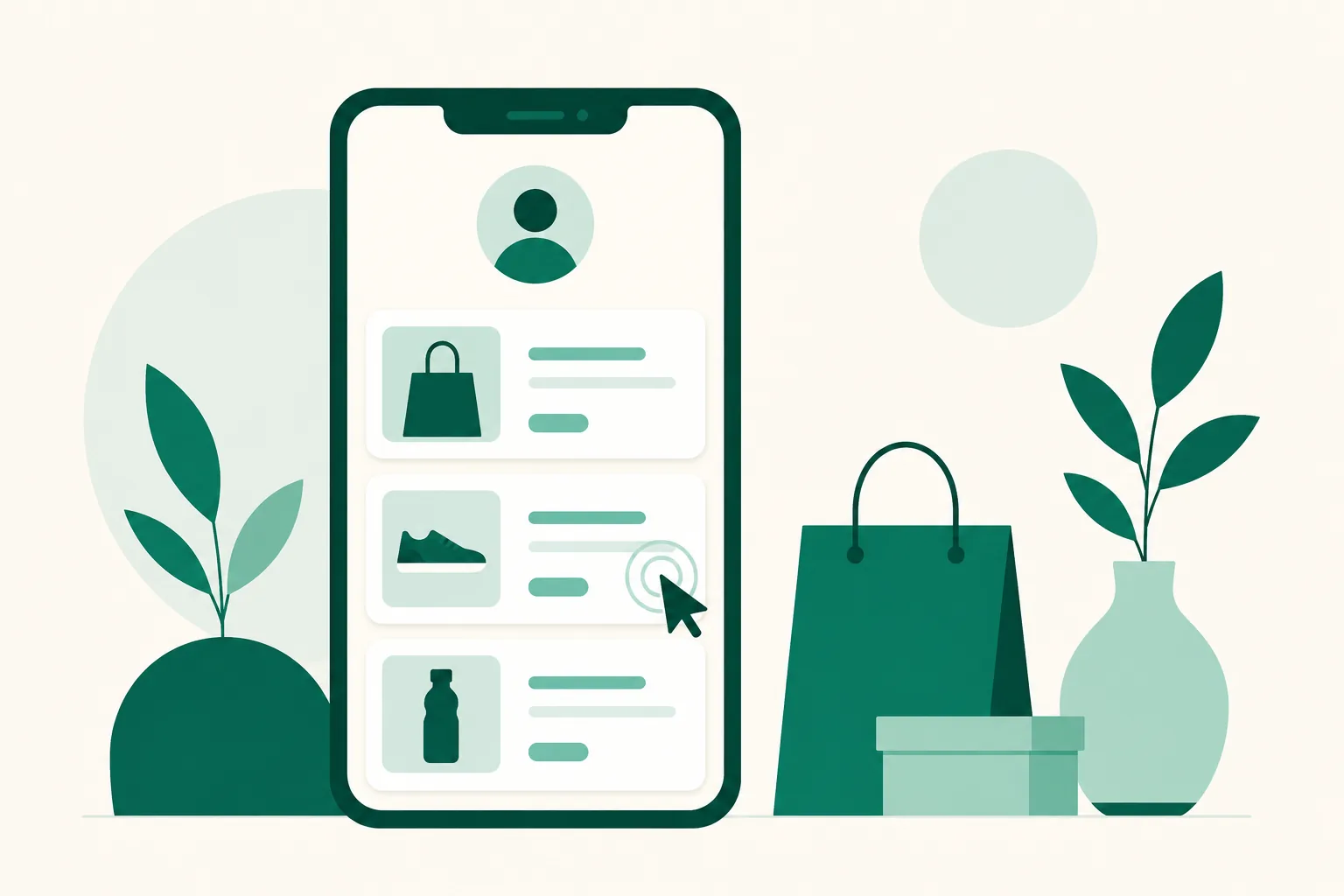
A link page shows all your products in one place. Each product goes up as a card with a title, a sales link, a thumbnail, and a price, and visitors tap the card to go straight to the seller.
- Product types: link (the default), a group link that folds several products open and closed, text for notes, a divider, images and banners, and contact and social buttons — you can mix and arrange them freely.
- Editor: edit on the left and the live preview on the right updates as you go. The tabs run Products, Design, Profile, Notice bar, Analytics, Page settings.
- Ways to show products: six link styles (basic, grid, text link, card, horizontal card, image background), sale price with a struck-through original and a discount rate, badges and tags, and scheduled visibility per product.
- Two page styles: choose between a Shopping page that gathers product links, and a Recipe Book for cooking creators.
How to make one
- Go to Dashboard > Pages and press New page.
- Pick Shopping page or Recipe Book, enter a page address and name, then press Create and start editing.
- In the editor's Products tab, choose Add product > Link, enter a title and the affiliate product address, then press Add. For the thumbnail, pick a file, drag and drop, or paste an image address — whichever is easiest.
- Switch the page to public in the Page settings tab, and put
link.uup.kr/your-addressin your Instagram profile.
Good to know
- A page address is 3 to 30 characters, using lowercase letters, numbers, hyphens, and underscores. If you change it later, the old address forwards to the new one for 30 days, so update the link in your profile within that window.
- Thumbnails can be JPG, PNG, WebP, or GIF, up to 10MB.
- How many pages and products you can create depends on your plan. Check your plan's limits in Dashboard > Plans & billing.
- Turning a product's public switch off keeps it in the editor and only hides it from visitors. When some products are off, a Make all public button appears above the list with the count.
- Connect Coupang Partners and your Coupang links turn into affiliate links automatically when you save. See the "Automatic Coupang affiliate links" post for details.
Questions? Use the chat at the bottom right of your dashboard.