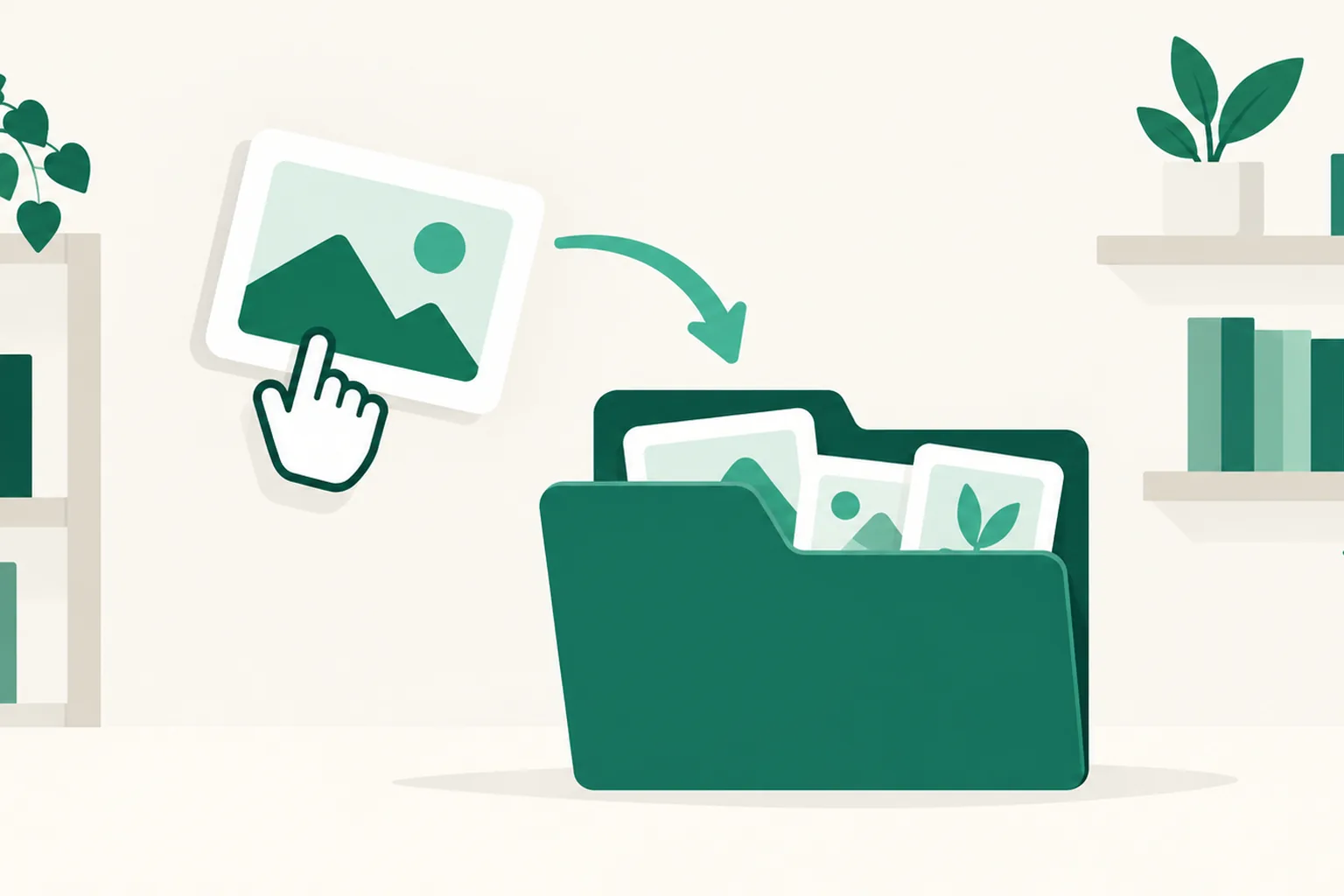
Move products into groups — put an existing product into a group or take it out
Until now, putting an existing product into a group meant registering the same product again inside the group and deleting the original. Now a single Move to group button on the product row moves the product itself into a group or out of one. Available from the Free plan.
What it does
- Move to group: press Move to group on a product row and a list of this page's groups appears. Each group shows how many sub-links it holds (n/10), and picking a group moves that product in as one of its sub-links.
- Move out of group: a product that is already inside a group gets a Move out of group option under the same button. The product returns to the top-level list and receives the page's next number.
- The product stays the same: nothing is created anew — the product itself is moved. Its click counts, statistics, Auto DM connections, and affiliate link are all kept as they are.
How to use it
- Go to Dashboard > Link pages and open Edit for the page.
- On the row of the product you want to move, press the Move to group button (group icon).
- Pick the group from the list. To take a product out of a group, choose Move out of group.
Full groups (10/10) and the group the product is already in appear greyed out and cannot be chosen. After moving, you can check the result right away in the preview on the right.
Good to know
- One group holds up to 10 sub-links. Once it reaches 10, create another group and continue there.
- Only products can be moved. Text, dividers, images, contact blocks, and groups cannot be moved into a group.
- When a product enters a group, its number (1, 2 …) disappears and its pin is released. Inside a group, products are shown in order without numbers.
- When a product leaves a group, it receives a new number and is placed at the top of the list. Use the up/down buttons or drag to move it where you want.
- Reordering (drag, up/down) still works only within the same group, as before. To move to a different group, use Move to group.
Questions? Use the chat at the bottom right of your dashboard.