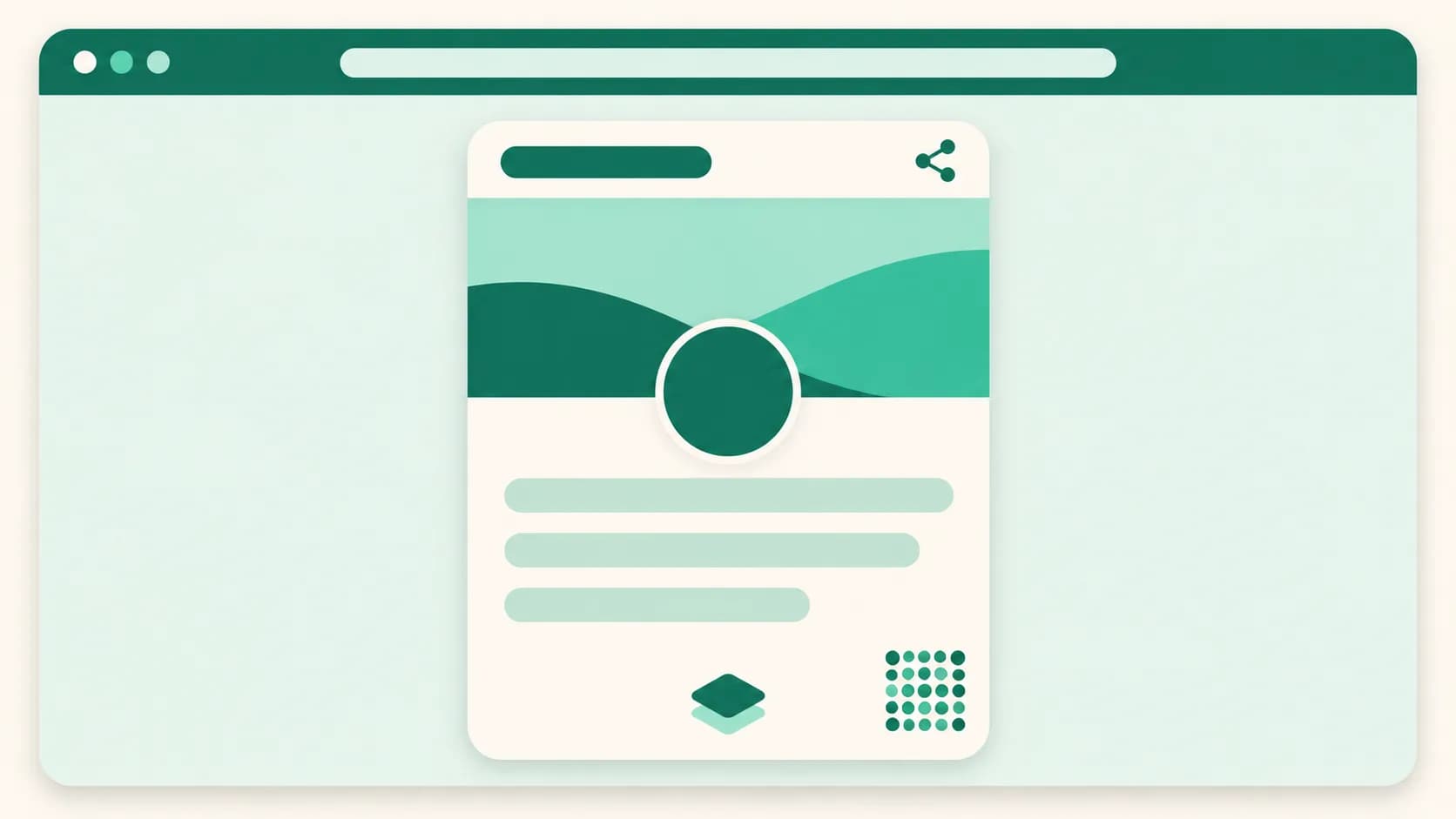
Pin a name bar, choose a cover style, and put your logo at the bottom of your page
On a page with lots of products, scrolling down used to hide whose page it was and where to share it. Now you can set up the very top and bottom of your page in Page layout on the Design tab. You can also choose a cover style that shows your cover photo large, and visitors on a computer see a QR code to continue on their phone.
What it does
- Pin a name bar on scroll: When visitors scroll past your profile, your page name and the share and copy-link buttons stay at the top of the screen. Your profile photo (unless it's the wide shape) shows small next to the name. It's off at first.
- Show a QR code on computers: Visitors on a computer see an Open on your phone QR code in the bottom-right corner. Scanning it with a phone camera opens the same page. It's on from the start.
- Wide-screen look: On wide screens like computers, the area around your page takes a background matched to your theme color, and the page itself shows as a rounded card in the middle. There's nothing to set up.
- Cover style: Choose Standard, Name on cover, or Profile overlap for your cover banner. Name on cover places your name and bio over a large cover photo, and Profile overlap has your profile photo overlap a cover that fills the page width.
- Footer watermark: Choose Show UUP, Hide, or My logo for the bottom of your page. With My logo, your logo appears where the UUP mark was, and you can add an address that opens when the logo is tapped.
How to use it
- Under Pages in your dashboard, open the page and go to the Design tab.
- In Page layout further down, turn Pin a name bar on scroll and Show a QR code on computers on or off.
- In Footer watermark in the same section, choose what to show. If you choose My logo, upload a Logo image and, if you like, add a Link when the logo is tapped (optional).
- For the cover style, upload a Cover banner under Theme, then choose from Cover style right below it.
Changes save automatically and show up in the preview on the right immediately.
Good to know
- The pinned name bar and the computer QR code are available on every plan. Cover styles and the watermark's Hide and My logo start from the Basic plan.
- Hiding the watermark used to be Hide the UUP watermark on the Page settings tab. It now lives in Footer watermark under Page layout on the Design tab. Pages where you already hid it stay hidden.
- Whatever you choose, the Report a problem link always stays at the bottom.
- The link for your logo must start with http:// or https://, and it opens in a new window when visitors tap your logo. A logo with a transparent background (PNG) looks best.
- If you turned on Stick to the top while scrolling for your notice bar, the name bar sits right below the notice and shows only your name (and profile photo), without the share and copy-link buttons. Those buttons are already in the notice bar.
- The QR code and the wide-screen look appear only on screens 1024px wide or more, and narrower screens (phones, most tablets held upright) stay the same. The QR code doesn't show in the editor preview, so check it on your page while it's public.
If you have questions, ask us in the chat at the bottom right of your dashboard.