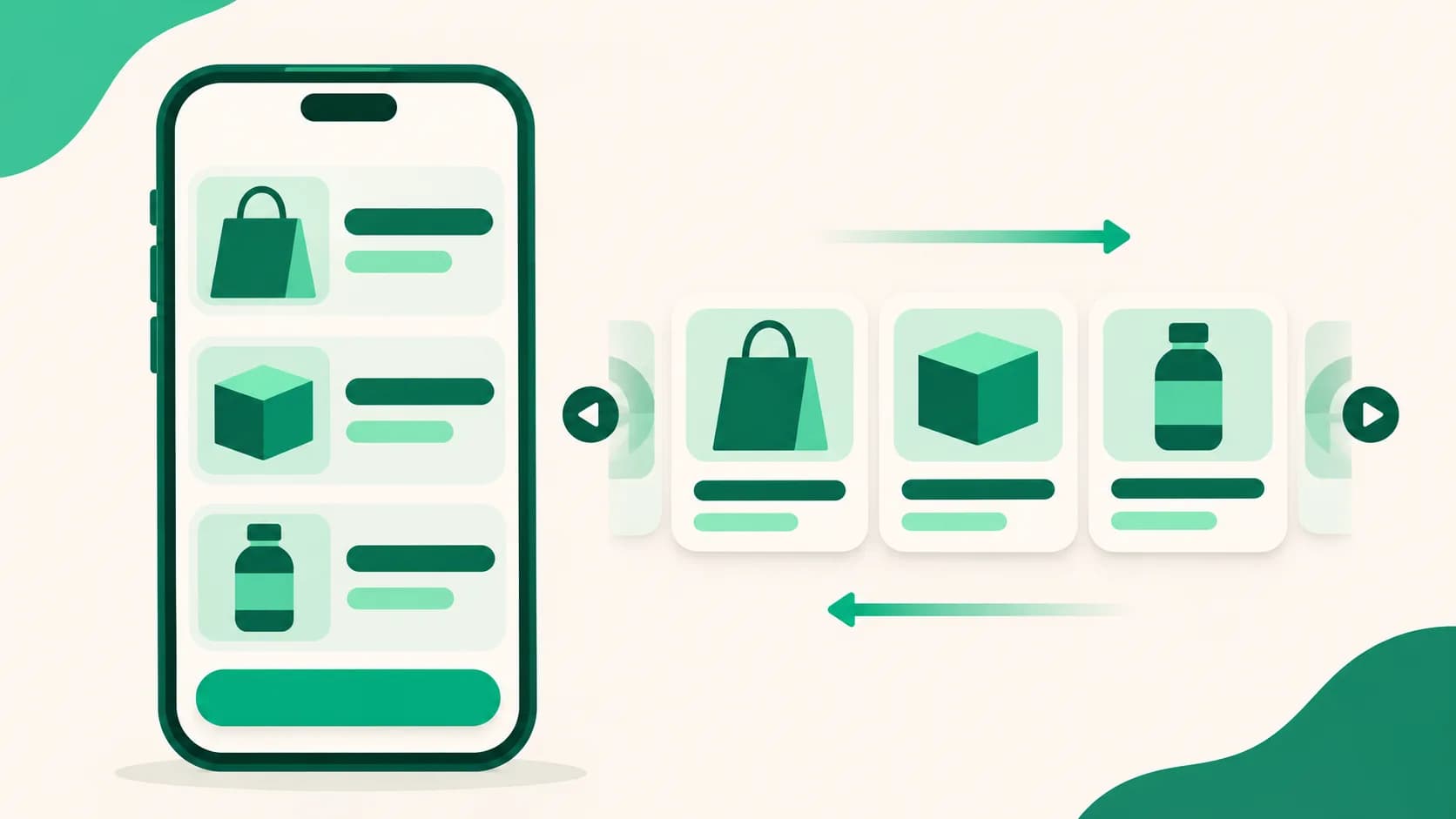
Float a product at the bottom of the screen and show groups as a swipeable row
Maybe there's a product you want visitors to keep seeing as they scroll, or a set of products you'd like them to browse in one row. Now you can float one product as a button at the bottom of the screen and show the products in a group as a swipeable row. You also get more choices for how products move when tapped and how dividers look.
What it does
- Float at the bottom of the screen: The product you choose floats as a button at the bottom of your public page. It stays put while visitors scroll, and tapping it opens the product exactly as tapping the product itself would. The button shows the product's title, and only one product per page can float.
- Show as a swipeable row: Products in a group sit in one row with photo, name, and price, and visitors swipe sideways to browse. Prices and discount rates show the same way as on the product cards in your list. On a computer with a mouse, the arrows to the right of the group title move the row too.
- Tap effect: Choose how products move when visitors tap them or hover over them: Press, Lift, or Bounce. Default keeps today's behavior, a slight lift on hover. It applies to the whole page at once.
- New divider styles: A divider's Line style now includes Three dots, Zigzag, and Space only. Space only leaves a gap with no line.
How to use it
- Under Pages in your dashboard, open the page and go to the Products tab.
- Press Edit on the product to float, turn on Float at the bottom of the screen, and press Save. This option is only on link products.
- To start a new swipeable row, choose Product row (swipe sideways) as the Product type in Add product. For a group you already have, press Edit on the group, turn on Show as a swipeable row, and press Save.
- For a divider, press Edit on the divider, choose a Line style, and press Save.
- For tap effects, go to the Design tab and choose a Tap effect under Product display.
Good to know
- Floating at the bottom, swipeable rows, and the new divider styles are available on every plan. Tap effects start from the Basic plan.
- Turning on Float at the bottom of the screen for another product turns it off on the one you floated before.
- Products that are private, scheduled but not yet public, auto-hidden as sold out, or past their hide time don't show a button either. When a recipe is open, its shopping bar uses that spot, so the button doesn't appear.
- Products inside a group or a recipe can't be floated. If you move a floating product into a group or to another page, floating turns off.
- A swipeable group never folds and always stays open. It isn't available for groups shown as an ingredient list or for a recipe's tools.
- Visitors who turned on reduced motion on their device see no tap-effect movement.
- Taps on the floating button and on the cards in a swipeable row count as clicks for that product, just like taps in the list.
If you have questions, ask us in the chat at the bottom right of your dashboard.