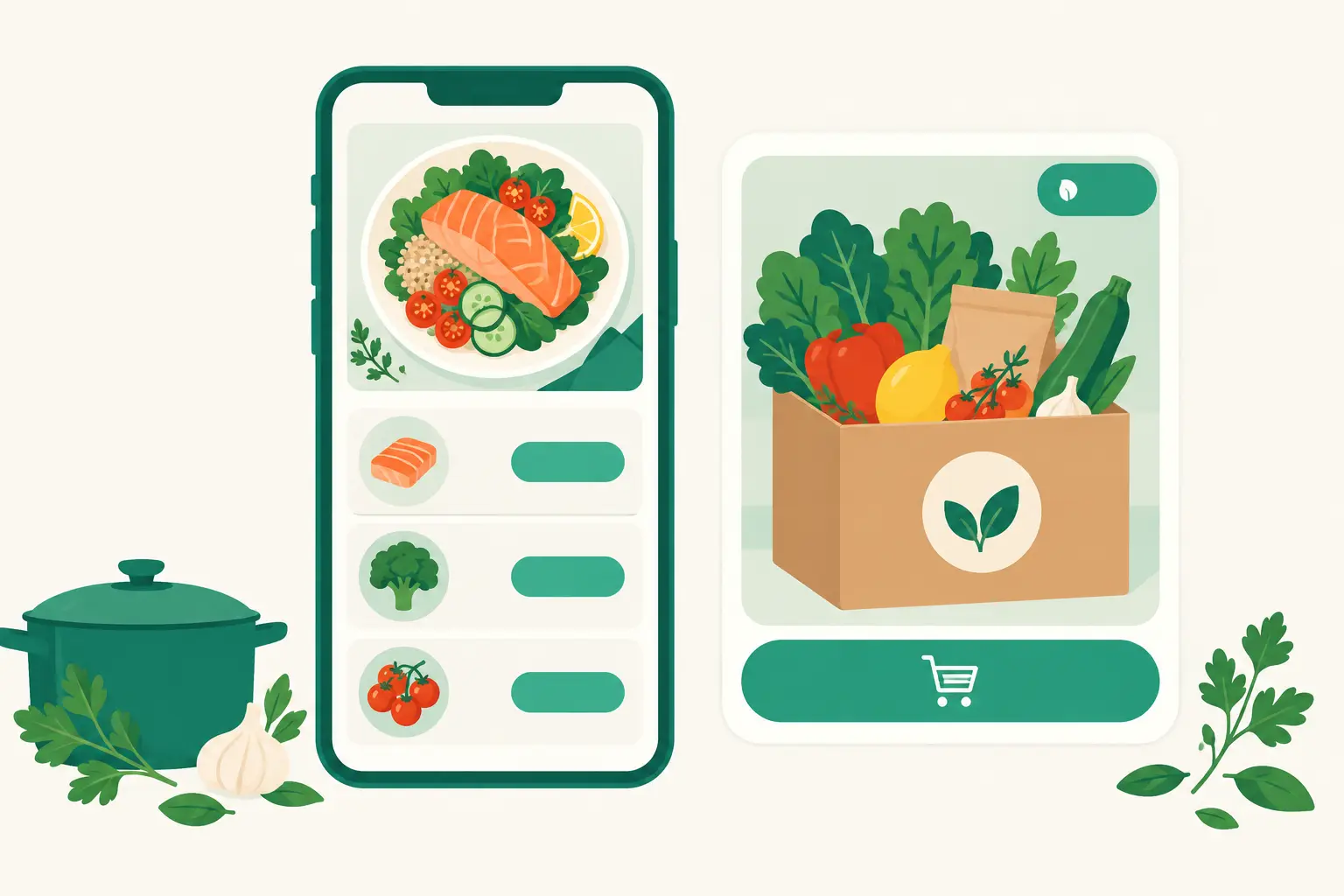
A bigger, cleaner recipe page, with the quick order shown as a product card
We redesigned the recipe details your visitors see. Ingredient and tool lines are bigger, so they are easier to read and tap on a phone, and the quick order button is now a card that shows the product photo.
What it does
- Bigger, easier ingredients and tools: Each line shows a large product photo, with the amount on its own line under the name. The Buy and Find on Coupang buttons are now a comfortable size to tap.
- A summary at a glance: Under the title you see how many ingredients, tools and steps there are, and a large Start cooking button opens cooking mode right away.
- Quick order product card: A quick order product you picked with the Chrome extension shows up as a card with its photo and name. For a recipe with only a search term, the top Coupang search result for that term is picked automatically and shown as a card marked Suggested.
- Steps and the shopping bar: Step numbers and text are bigger. The shopping bar at the bottom is also bigger and easier to tap.
How to use it
- There is nothing to turn on. Recipe details switch to the new look by themselves.
- To pick the quick order product yourself, on the recipe editing screen click Pick on Coupang under Custom link in Quick order button, pick a product and save.
- If you don't want the automatic card, turn off Show a recommended Coupang product picked by the search term as a card in the same place and save.
The quick order card has conditions.
- Your plan must be BASIC or higher.
- Your Coupang Partners API connection must be finished — check that Connections › Coupang Partners shows the status "Connected".
Good to know
- The automatic card is a search made with your own Partners key, so its link is your Partners link too. So that it doesn't look like a product you picked yourself, the card shows Suggested and where it came from.
- The price on the card is the Coupang price when the product was picked, so it may differ from the current price. Cards are rebuilt every few days.
- Cards are made slowly within Coupang's search limits, so a card takes a moment to appear after you save, and existing recipes change one by one.
- Tools stay as they are: you can search them right away with Find on Coupang.
- The tool list starts collapsed, and visitors open it with Show all. Ingredients are always shown.
- The Start cooking screen is easier to tap too. Each step shows the ingredients it uses as large cards, and Ingredients·Tools opens a large list from the bottom with separate tabs for ingredients and tools.
If you have any questions, ask us in the chat at the bottom right of the dashboard.