Add Coupang products to your recipe tools, just like ingredients
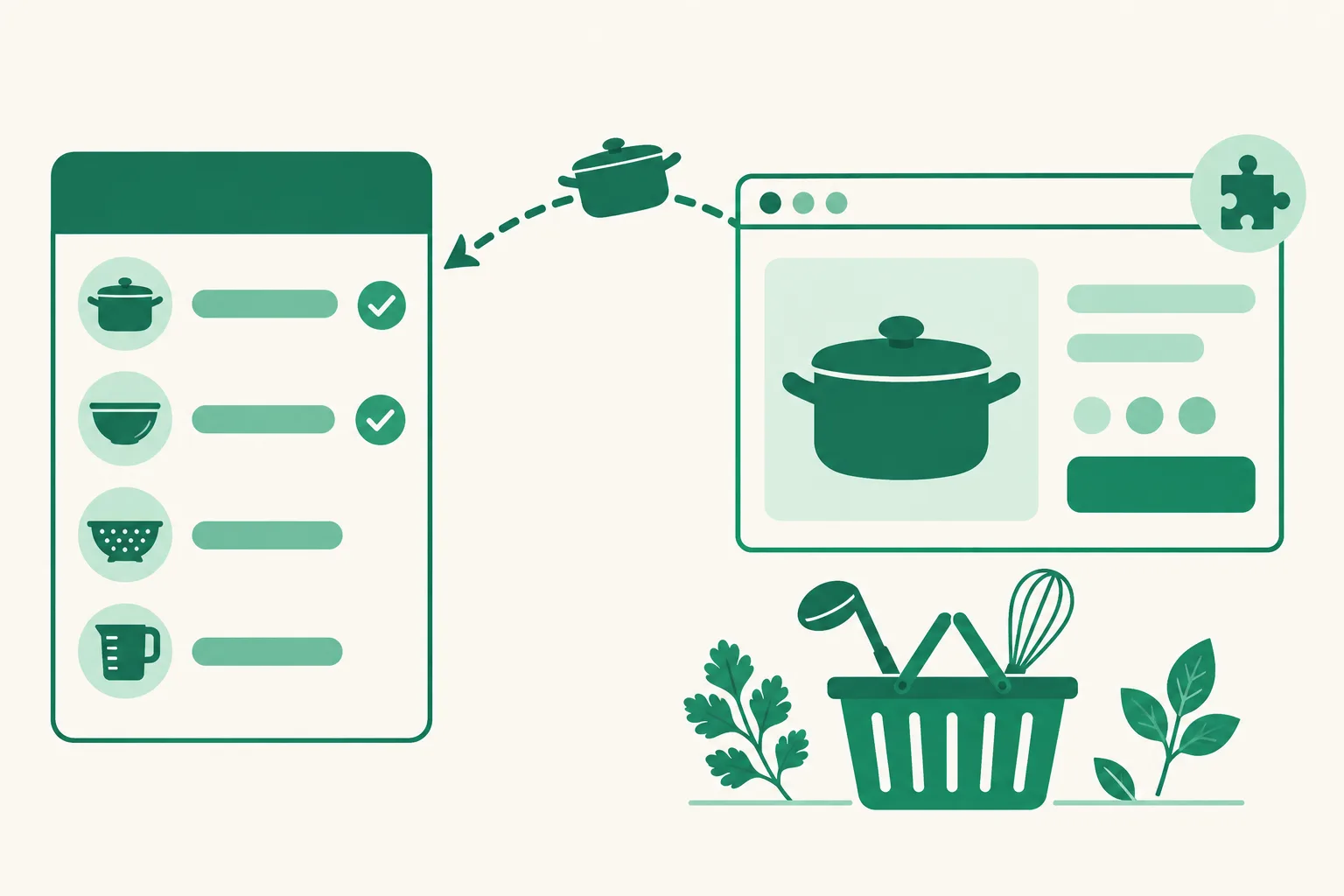
You can now put Coupang products on the tools of a recipe, exactly as you do with ingredients. Pick a product right on a tool line while creating or editing a recipe, or add it to a tool with 유유피에 담기 (Add to UUP) in the Chrome extension. The photo of the product you added shows up on the tool line as an icon right away.
What it does
- Tool lines in the editor: Tool lines on Add recipe and on the recipe editing screen now have 쿠팡에서 고르기 (Pick on Coupang) too. On the editing screen, 링크 없는 조리도구 N개 이어서 연결 (Link N tools without a link) lets you go through the tools without a link one line at a time.
- Add straight from the Chrome extension: Click 유유피에 담기 (Add to UUP) on a Coupang product page and choose Add to a recipe in the window. After picking the recipe, you choose where it goes: Ingredient or Tool.
- Quick order link from the extension too: On the recipe editing screen, under Custom link in Quick order button, click Pick on Coupang and then 유유피에 담기 (Add to UUP) on a product page such as a meal kit, and that field is filled with your Partners link.
- Tools on your visitors' screen: Tools now show one per line, just like ingredients. A tool with a product gets its photo icon and Buy, and a tool without a link gets Find on Coupang.
- Tools join the shopping list: Tools with a product are now included in the shopping button under the recipe details, which reads Shop N missing items. Visitors can take out the tools they already have with Have it.
How to use it
- In the editor of your recipe book page, expand a recipe, or go to the ingredients step of Add recipe.
- Pick a product with 상품 찾기 (Find product) or 쿠팡에서 고르기 (Pick on Coupang) on a tool line. 쿠팡에서 고르기 needs UUP Affiliate Link Helper installed in Chrome on your computer.
- Check that the line now has the photo icon and the name of the product you picked, and save. On the Add recipe screen, it's saved when you click 레시피 만들기 (Create recipe).
If you found the product on Coupang first, go 유유피에 담기 (Add to UUP) → choose your recipe book page → Add to a recipe → pick the recipe → choose Tool → pick the tool line (or Add as a new tool) → Add to recipe, and it's saved right away.
The conditions are the same as for ingredients.
- Your plan must be BASIC or higher.
- Your Coupang Partners API connection must be finished — check that Connections › Coupang Partners shows the status "Connected".
Good to know
- Tools have no amount field. The tool keeps the name you wrote, and the name of the product you picked is shown separately under that line.
- Tools are not added to "this step's ingredients" in cooking mode or to the recipe ingredient list we share with search engines. Tools are shared separately as tools.
- We also fixed the order where tools moved above the ingredients after you linked every ingredient. For a recipe that already looks like that, add a product to one of its tools and save, and the tools go back below the ingredients.
- In a browser without the extension, clicking 쿠팡에서 고르기 (Pick on Coupang) shows installation help right there. Install it and click again. A plain Coupang product address in the quick order field earns nothing, so click Turn into a Partners link under the field.
- Chrome on phones can't install extensions, so the extension features work on a computer only. See the Chrome extension installation and usage guide for how to install it.
If you have any questions, ask us in the chat at the bottom right of the dashboard.