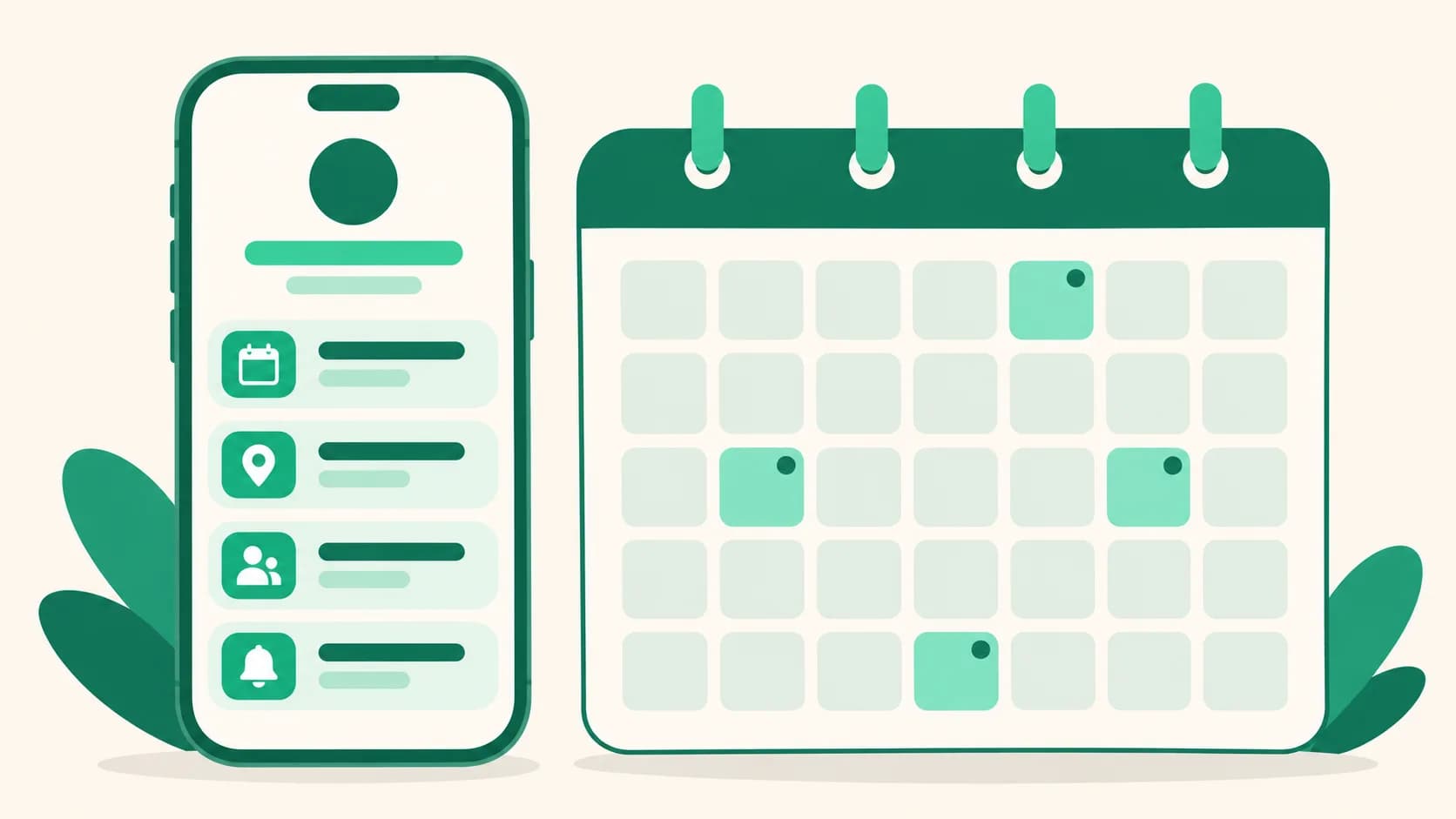
A new Schedule product shows group buys and live streams as a list or calendar
Group-buy openings, live streams, event deadlines: news where the date matters can now sit together in one product. Add dates to the new Schedule product type, and it sorts ongoing and upcoming events by itself, based on when a visitor is looking.
What it does
- Sorted around right now: Ongoing events are marked Ongoing, and upcoming ones show how soon they start, like Today or In 3 days. In the list display, past events fold away at the bottom under N past events.
- List or calendar: Choose List or Calendar as the display. In the calendar, days with events get a dot, and tapping a date shows that day's events.
- A link for each event: Attach a group-buy product or a live stream address to an event, and visitors can tap to go straight there.
How to use it
- Under Pages in your dashboard, open the page and press Add product in the Products tab.
- Choose Schedule as the Product type, write a Title (optional) if you like, and pick a Display.
- Press Add event and enter an Event name and a Start date. Add times, an end date, an end time, or a link only when you need them.
- When your events are in, press Add. Later, change them under Edit on that product and press Save.
Good to know
- Times are in Korea time (KST). Leave the time blank for an all-day event, or the end blank for a single-day event.
- You can add up to 50 events, and they're sorted by date automatically.
- If there's no ongoing or upcoming event, visitors don't see the product. Meanwhile, the editor list marks it Hidden from visitors.
- Links open in a new tab and aren't counted in product clicks.
- On pages with Show product images only turned on, schedules don't appear.
- It works on all plans and counts as one product toward your page's product limit.
If you have questions, ask us in the chat at the bottom right of your dashboard.