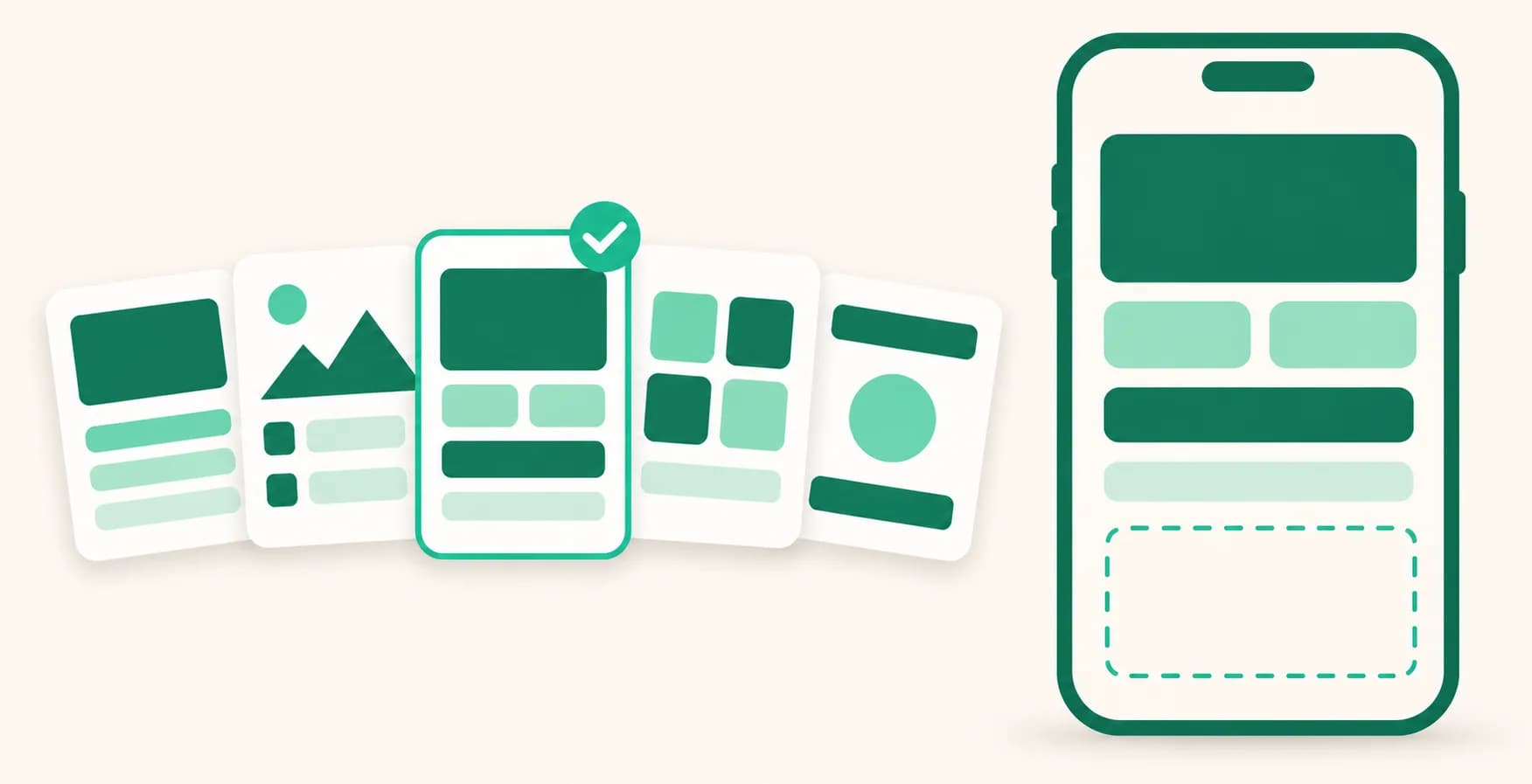
Start a new page from a template that fits what it's for
You no longer have to begin by picking a design on a blank screen. When you make a new page, choose what kind of page it is, and a design and empty sections that suit it are set up first. Just fill in your products and it's ready to use.
What it does
- 5 templates: Choose from Coupang picks, Group buy, Brand & store, Classes & booking, and Creator links. If you don't pick one, you start with a Blank page as before.
- Check the preview: Pick a template card and a preview shows how the page will look, on the right on a wide screen or below the cards on a narrow one. Products and events in the preview are examples and don't go into your page.
- Empty sections: Spots that fit the purpose are made in advance, like a product row and a group-buy schedule for Group buy, or a class calendar for Classes & booking. Visitors don't see them until you add products or an ongoing or upcoming event.
- For blank pages you already have: If a page has no products yet, press Start from a template in the editor to add one.
How to use it
- Under Pages in your dashboard, press New page.
- Under What kind of page are you making?, pick a template and check the preview.
- Enter a Page address and a Page name, then press Create and start editing.
- In the editor, add products to sections like product rows with Add a link, and add events to a schedule under Edit.
- For a blank page you already have, press Start from a template in the Products tab, pick a template, and press Use this template.
Good to know
- All templates work on the Free plan too.
- In the editor list, empty sections are marked Hidden from visitors. Once you add products or an ongoing or upcoming event, visitors see them.
- Coupang picks starts with no empty sections. Products you add with Add product are numbered, and if your notice is empty, the Coupang Partners paid-partnership notice goes in as your notice (Coupang's required wording, in Korean). Other templates leave number display as it is, and groups like product rows take the first numbers. Schedules don't use numbers.
- Adding a template in the editor changes the design and adds empty sections. Your name, bio, photos, and address stay as they are.
- Pages that already got a template (even after you delete its empty sections) and recipe book pages don't show Start from a template, so check the preview before you pick.
- Recipe books start from the Recipe book card on the same screen. That card appears when your dashboard is in Korean.
If you have questions, ask us in the chat at the bottom right of your dashboard.