How to Post an Instagram Carousel (2026) — The Real Slide Limit, Why Sizes and Ratios Get Cropped, Mixing Photos and Videos, and Scheduling-Tool Limits
Search for Instagram carousels and you'll find posts saying "10 slides max" right next to posts saying "you can do 20." Neither is wrong — the Instagram app allows up to 20, while the official API that outside tools use allows up to 10, so the answer depends on where you post from. This guide covers what a carousel is, how to post multiple photos in the app, why sizes and aspect ratios get your photos cropped, how long videos can be when you mix photos and videos, and how the limits change when you post a carousel through a scheduling tool — all based on official documentation.
Before you read: App-side facts come from the Instagram Help Center article Share a post with multiple photos or videos on Instagram; API-side facts come from Meta's developer docs Content Publishing and IG User Media (checked 2026-10). Instagram changes menus and limits without notice, so double-check the Help Center for the current state. This guide is written by the UUP team, which builds an Instagram auto-upload feature.
What an Instagram carousel is — and how to post one in the app
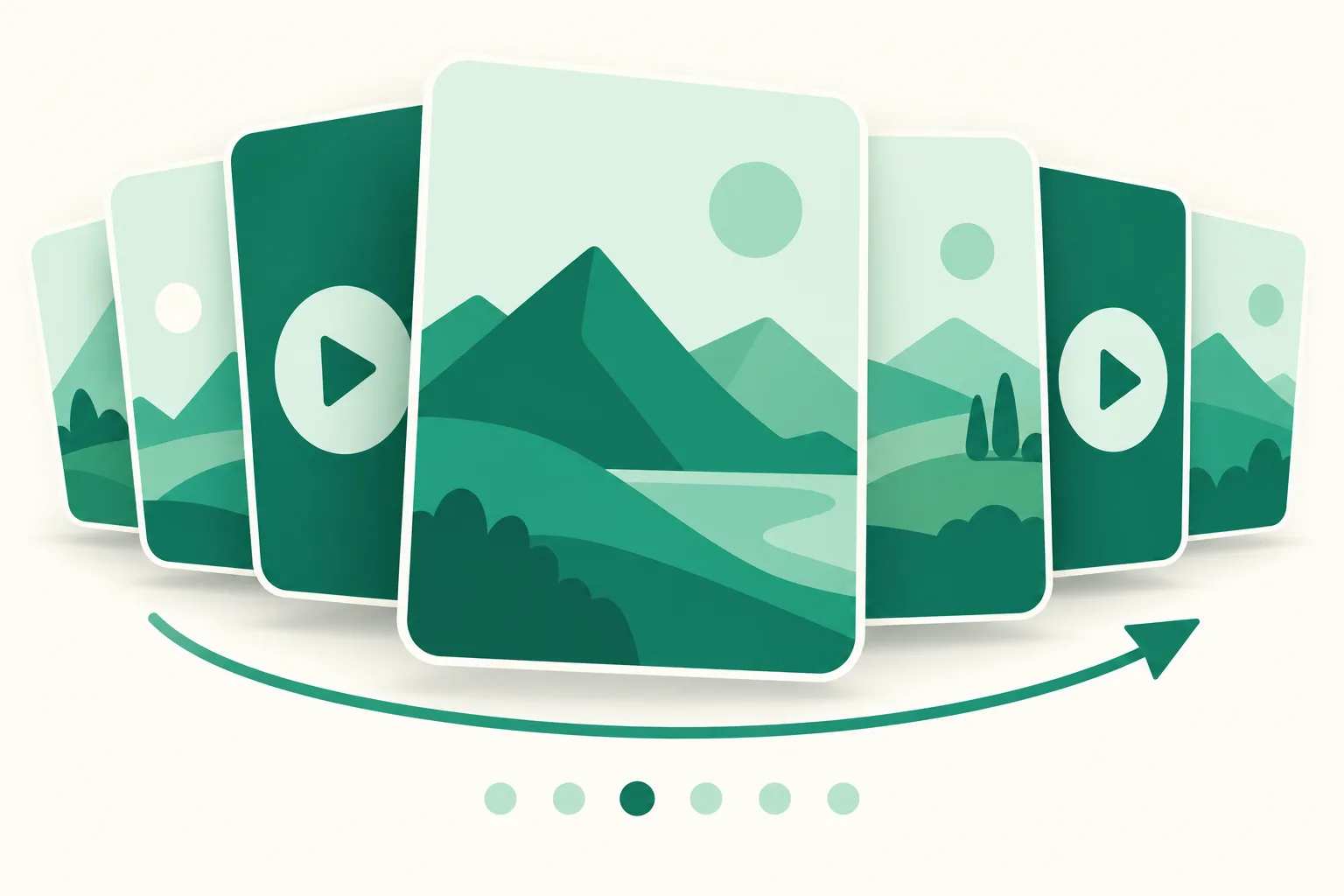
A carousel is a single post that bundles several photos or videos for people to swipe through sideways. The Help Center also calls it a "slide" post. There's one caption and one location for the whole post, and likes and comments add up on the post as a whole, not per item. Only people tags can be added photo by photo (per the Help Center).
How to post multiple photos on Instagram
- Tap Create (+) and choose Post.
- On the photo picker, tap the stacked-photos icon to switch to multi-select, then pick up to 20 photos and videos. The orientation you choose here (square, portrait, or landscape) applies to every item.
- Drag and drop to reorder, and remove anything you don't want.
- Apply a filter to everything at once, or tap an item to edit it on its own.
- Write your caption and tap Share.
These steps follow the Help Center's desktop instructions. The phone app works the same way, but button positions and names can differ by app version.
After posting, the edit menu still lets you reorder or delete items, but not add new photos or videos (per the Help Center). If you forgot a photo, you'll have to post again — so check the count before you share.
Instagram carousel limit — 20 in the app, 10 via the API
This is the number people get wrong most often. Instagram has supported 10-item carousels since 2017, and on August 8, 2024 the official account announced an increase to up to 20 photos and videos (Social Media Today, 2024-08-08; Adam Mosseri's Threads post the same day). The Help Center now says a post can include "up to 20 photos and videos."
Scheduling tools, though, publish through Meta's official API rather than the app. Those docs still say "Carousels are limited to 10 images, videos, or a mix of the two." So no matter which tool you use, a carousel posted via the API tops out at 10.
| Where you post from | Max items | Mix photos & videos | Source |
|---|---|---|---|
| Instagram app | 20 | Yes | Help Center (checked 2026-10) |
| Official API (scheduling tools) | 10 | Yes | Content Publishing docs (checked 2026-10) |
| UUP auto-upload — Instagram | 2–10 | Yes | Follows the API limit as-is |
| UUP auto-upload — Threads | 2–20 | Yes | Threads API limit |
If a post truly needs 20 slides, post it directly from the app. If a tool advertises "schedule 20 slides," it's worth checking whether that's about a different channel rather than Instagram. Also note: a carousel posted via the API counts as one post toward the daily publishing limit.
Carousel size and aspect ratio — everything is cropped to the first slide
The most common carousel mishap is "the top and bottom of my photos got cut off from slide two onward." It comes down to one rule. The Help Center says the orientation you choose (square, portrait, or landscape) applies to every photo or video in the post, and you can't choose a different orientation for each one. The API docs say the same thing: "Carousel images are all cropped based on the first image in the carousel." In other words, the first slide's frame is the frame for the whole post.
| Orientation | Ratio | Use it when |
|---|---|---|
| Square | 1:1 | The app default. Safest when your photos have mixed ratios |
| Portrait | 4:5 | Takes up the most screen space in the feed |
| Landscape | 1.91:1 | Scenery and wide screenshots. Looks small in the feed |
Photos posted through the API must fall within 4:5 to 1.91:1 (IG User Media docs). Anything outside that range — a 9:16 vertical screenshot, for example — may be rejected when posted through a tool.
How to avoid cropping
- Make every slide the same ratio: if you're going 4:5, crop or design all of them at 4:5 from the start.
- Put the most care into the first slide: its ratio sets the rest, and it's the slide people see in the feed.
- Keep key text and faces centered: if the ratio is slightly off, only the edges get trimmed.
- Design card-style carousels at 1080×1350 (4:5) or 1080×1080 (1:1) so you never have to re-crop.
Posting photos and videos together — carousel video length
You can mix photos and videos in a carousel. But videos inside a carousel aren't treated as Reels (per the Help Center). They don't show up separately in the Reels tab, and they can't be as long as Reels.
The Help Center doesn't list a number for carousel video length. Based on public sources, 3–60 seconds per video slide is the commonly cited figure (Metricool's guide, checked 2026-10) — this may change. The API docs define carousel items as "image or video containers (reels are not supported)," so a video in a carousel posted by a tool also goes in as a regular video, not a Reel. Videos longer than 60 seconds belong in a standalone Reel, not a carousel.
When mixing in videos:
- Videos follow the first slide's ratio too: a 9:16 vertical video in a 4:5 or 1:1 carousel gets its top and bottom cropped. Videos between 4:5 portrait and 16:9 landscape are safest.
- When posted by a tool, carousel videos can't have a custom cover: the API's cover setting (
cover_url) is Reels-only, so the video's first frame is used. - Lead with a photo: when the first thing people see in the feed is a still image, they can tell what the post is about at a glance.
Scheduling a carousel with a tool — UUP auto-upload
The Instagram app has its own post scheduling, but if you also post the same carousel to Threads or a Facebook Page, you have to schedule each channel separately. UUP's auto-upload lets you schedule one post to multiple channels from a single screen, and at the scheduled time UUP's publishing queue posts it to each channel.
Steps
- In the dashboard, go to Auto-upload and click Create a post.
- Choose the accounts to post to, and pick Multi-photo as the post type.
- Click Choose photos or videos or drag files in. Use the arrows to set the order.
- Set the caption and publish time, then schedule.
| Channel | Multi-photo items | Mix photos & videos | Video requirements |
|---|---|---|---|
| 2–10 | Yes | 3–60 sec, 100MB; goes in as a regular video | |
| Threads | 2–20 | Yes | MP4/MOV, 1GB, 5 min |
| Facebook Page | 2–10 photos | Photos only | Blocked — no official evidence that videos can be mixed |
Limits we want to be upfront about:
- Instagram crops the rest to the first slide's ratio. The screen warns you in advance: "In an Instagram multi-photo post, the remaining photos are cropped to match the aspect ratio of the first one." UUP doesn't crop your photos for you.
- Photos can be up to 8MB each, and they're uploaded to Instagram as JPG.
- 9:16 vertical videos trigger a warning — they may appear cropped or be rejected when publishing.
- Videos in a multi-photo post can't have a cover. The video's first frame is used.
- Posts that include videos may go live a few minutes after the scheduled time, because each channel needs time to process the video.
- If you turn on the AI-generated content disclosure, a multi-photo post gets it on the post as a whole.
- If you've selected a Facebook Page account in a batch that includes videos, the screen tells you before saving — just remove the videos or unselect that account.
Auto-upload is available on Upload Pro ($8.49/month) and Ultra ($14.99/month, includes Auto DM), plus the 14-day trial you get right after signing up (no card required, no automatic charge). It isn't included in DM Pro. Channel-by-channel details are on the features page.
FAQ
I added 20 slides, but my scheduling tool says only 10 are allowed
That's expected. 20 is the Instagram app's limit; the official API that outside tools use allows 10. If you really need 20, post it from the app directly.
Everything after my first carousel photo gets cropped
The first slide's orientation (square, portrait, or landscape) applies to the whole post. Re-post with every slide at the same ratio, or don't lead with a slide whose ratio doesn't suit the rest.
Do videos in a carousel show up in the Reels tab?
No. Per the Help Center, videos in a carousel aren't treated as Reels. Post videos you want surfaced as Reels on their own — see How to schedule Instagram Reels.
See also
- How to schedule Instagram Reels — the app's built-in scheduler vs. auto-upload tools
- How to schedule Threads posts
- When scheduled Instagram posts don't publish
To schedule a carousel to Instagram and Threads at once, get started with UUP and open it right away with the 14-day trial.