How to Schedule Instagram Reels (2026) — Native App Scheduling vs Auto-Upload Tools, and How Far Each Goes
The time you post a Reel drives how it performs, but you can't always be holding your phone at that exact moment. So you go looking for scheduled uploads, and the search results mix "you can do it right in the Instagram app" with "you need a tool." Both are true — it just depends on whether the app's built-in scheduling is enough or you actually need a tool. This post lays out the exact conditions and limits of the app's native scheduling, what genuinely changes when you use a tool, and the Reels specs neither path lets you escape.
The conditions and limits for native scheduling come from the official Instagram Help Center as of September 2026 ("How to create and manage scheduled posts and reels"). Instagram changes these often, so it's safest to check the Help Center again before you try. This post is written by the UUP team, who build the auto-upload feature.
1. Instagram's native scheduling — conditions and limits
The Instagram app has scheduling built in. Per the official Help Center, here are the conditions.
| Item | Value |
|---|---|
| Eligible accounts | Public accounts (private accounts cannot schedule) |
| Scheduling window | Up to 30 days in advance |
| Daily scheduling cap | 25 items |
| What you can schedule | Posts and Reels |
| Where to manage it | Profile → menu → Scheduled content, or "Scheduled" on the new post screen |
The steps: Create → Reel → pick your video → edit and write your caption → Advanced settings (See more) → turn on Schedule → set the date and time → done. From the Scheduled content screen you can delete, edit, change the time, or publish immediately.
This is enough when: you run a single account, you're queuing up about a week at a time, and you don't mind adding your link by hand after each post goes live. It's free and it's the safest path, so start here first.
2. Four signs you've outgrown it
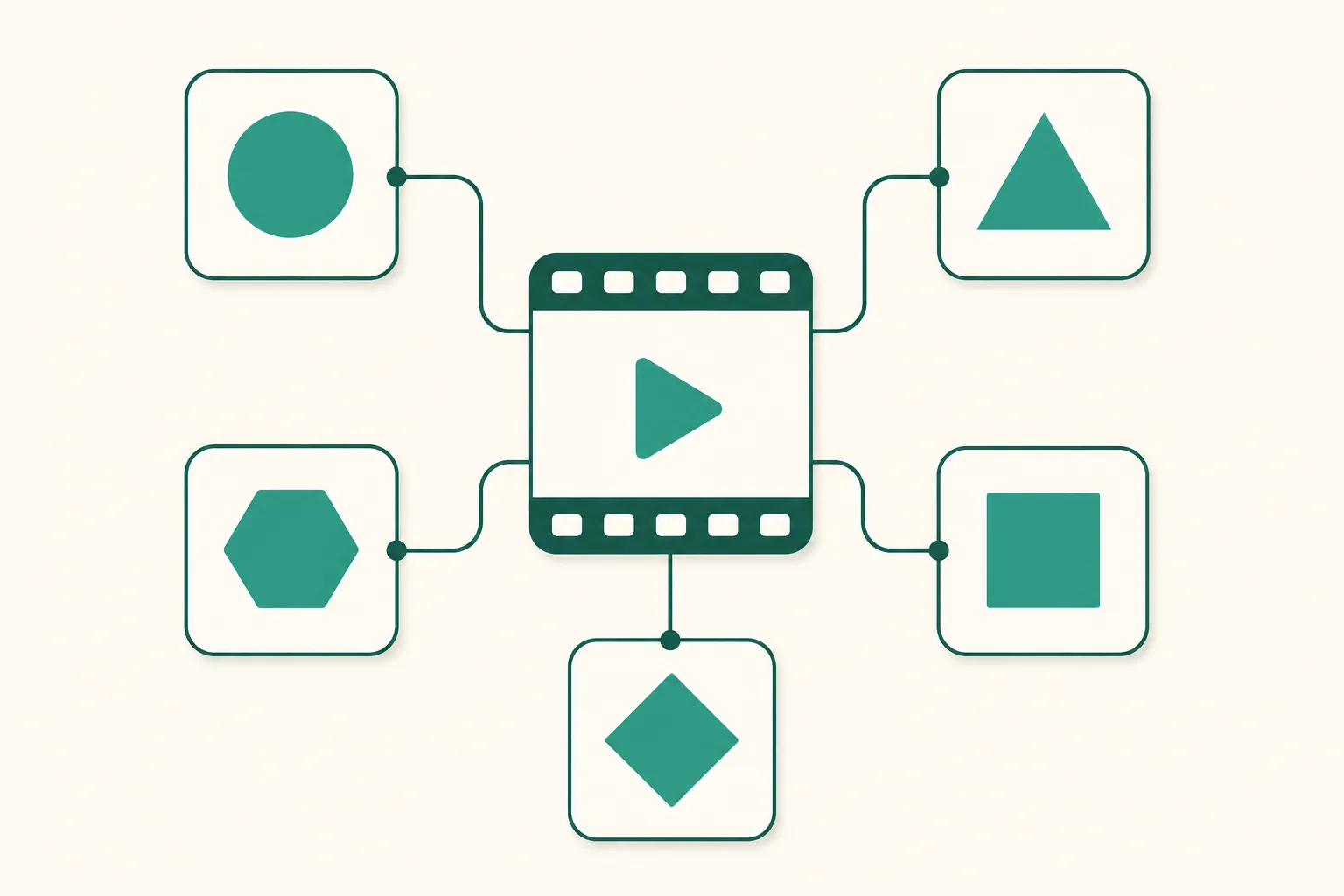
- You post the same video to several channels — you put the Reel on Threads, a Facebook Page, YouTube Shorts and TikTok too, but native scheduling only covers Instagram.
- You plan further out than 30 days — group buy (gonggu) calendars and seasonal campaigns you map out more than a month ahead.
- Something always has to follow right after publishing — dropping your link page URL in the first comment, or attaching DM automation to that post.
- You want drafts and a monthly calendar — the app's Scheduled content list has no draft or calendar view.
3. What changes with an auto-upload tool — the UUP version
UUP auto-upload publishes on your behalf, at the time you set, to five channels: Instagram, Threads, Facebook Pages, YouTube and TikTok (as of 2026-09-04 all five are open to members). From a Reels point of view, here's what changes.
- Schedule one video to several channels at once. Caption limits differ by channel (Instagram 2,200 characters, Threads 500, TikTok 2,200 and so on), so the composer shows a live per-channel counter and catches problems at save time — because if it fails at publish time, you're asleep.
- Schedule the first comment along with it (Instagram and Threads), with your link page URL filled in automatically. Links in a Reel caption aren't clickable, which is the entire reason link pages exist. (A failed first comment doesn't turn the post itself into a failure — the post is already up.)
- Drafts and a monthly calendar. You write a scheduled upload for a date straight from that date's cell.
- When something fails, the screen tells you the cause and the next action, with a retry button. Expiring tokens and re-consent requirements are flagged 3 days and 1 day ahead. That's the difference from most tools, which tell you after the failure.
- Instagram's daily publishing cap isn't a number we made up — we use the value Instagram reports, and show it on screen as "published in the last 24 hours: n / m" (it's a rolling 24 hours, not a midnight reset).
4. Reels specs neither path lets you escape
Instagram videos uploaded via the API are published as Reels (in UUP they also appear in the feed — there's no option to turn that off). So the specs are Reels specs.
| Item | Value |
|---|---|
| Length | 3 seconds – 15 minutes |
| File | MP4 / MOV, Reels up to 300MB (UUP pipeline limit: 3GB and 1 hour — each channel's cap sits on top of that) |
| Cover (thumbnail) | JPEG image |
| Caption | 2,200 characters, 5 hashtags (Instagram policy since Dec 2025 — UUP warns from 6) |
| Photos and carousels | JPEG only (the screen converts PNG to JPEG on upload and tells you it did), and carousels are all cropped to the first slide's ratio |
One more if you're also posting to YouTube: vertical videos of 3 minutes or less are treated as Shorts, and Shorts covers can't be set through the API. When a video is going to YouTube only, UUP closes the cover field entirely and tells you to set it in Studio instead. The call is that showing something as available when it isn't, is worse than not showing it.
5. What to check before using a tool — plans and permissions
- UUP auto-upload is available on Upload Pro ($8.49/mo), Ultra ($14.99/mo, includes DM automation), and the 14-day trial. It's not in DM Pro — the two plans are siblings, not a hierarchy.
- When you connect Instagram you have to approve the content publishing permission. An account you connected only for DM automation in the past has no publishing permission, which turns into "it scheduled fine but never went up," so follow the reconnect prompt on the account card.
- The unit of sale is "one connected Instagram account = one slot," and monthly post volume is not a pricing axis. There is, however, a separate monthly publishing cap as abuse protection (trial 100, Upload Pro 300, Ultra 600). And it isn't "unlimited" either — Instagram's API 24-hour cap is the physical ceiling.
Frequently asked questions
Can I use app scheduling and tool scheduling together?
Yes. But if you queue the same video in both, it goes up twice. If you've decided to manage things with a tool, it's safer to leave the app's Scheduled content empty.
My scheduled Reel went up, but the cover looks different
Instagram uses the JPEG cover you set. If it's a YouTube Short, that's the API limitation described above, and TikTok has no cover image upload at all — you can only pick a specific frame from the video.
I have a private account and scheduling doesn't work
Native scheduling requires a public account. Connecting a tool also assumes a professional account, so start with switching to a professional account.
Related reading
- Instagram group buy and seller automation setup — how to stop drowning in DMs
- Running DM automation for group buy open and close times — 3 settings people miss
- What UUP does today and what's coming next — the full feature map
- How to schedule Threads posts — the built-in scheduler and what changes with a tool · How to schedule YouTube Shorts
- How to schedule Facebook Page posts — Business Suite and the 30-day wall · Instagram scheduled post didn't publish — 7 causes
- How to cross-post one video to Reels, Shorts, and TikTok — five channels, what changes per channel
- Instagram's 5-hashtag limit — what happens with 6 or more, and whether moving them to the first comment helps
- How to change a Reels cover · Instagram Reels length limits · Instagram carousels — how to post and how many slides
To try five-channel scheduling and Instagram first-comment links in one place, start for free opens it with a 14-day trial once you verify a Korean mobile number. Per-channel details are on the features page.