Chrome extension — add Coupang products to UUP right from the product page
Install 유유피 제휴 링크 도우미 (UUP Affiliate Link Helper) in Chrome on your computer, and one button on a Coupang product page adds that product to your page or copies its affiliate link.
What it does
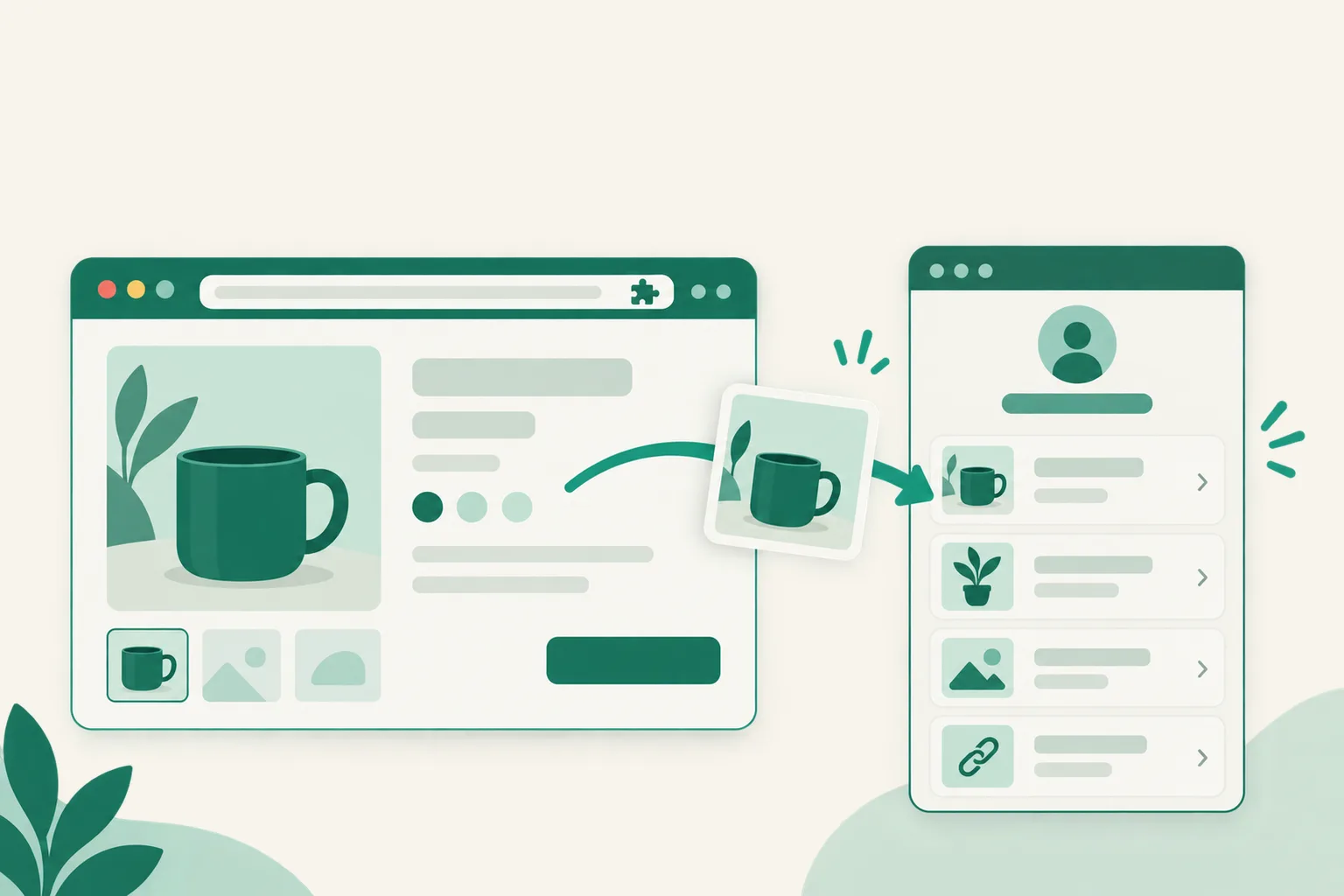
Until now, when you found a Coupang product you wanted on your page, you had to copy its address, go to the dashboard, and paste it in. Now you click the 유유피에 담기 (Add to UUP) button at the bottom right of the Coupang product page, and a small UUP window opens.
In that window, check the product name and photo, choose the page to add it to, and click Add as product. The product goes in already converted to your Coupang Partners link.
When you only need the link and not a new product on your page, click Copy affiliate link. A short link is created and copied to your clipboard right away.
How to install and use it
- In Chrome on your computer, open UUP Affiliate Link Helper on the Chrome Web Store and click Add to Chrome.
- Sign in to uup.kr in the same Chrome. The extension works through that sign-in, so there is nothing else to connect.
- Open a Coupang product page and click the 유유피에 담기 (Add to UUP) button at the bottom right. Clicking the UUP icon in the toolbar does the same.
- In the window that opens, check the product name (click it to edit) and the Page to add to, then click Add as product or Copy affiliate link.
Two conditions apply.
- Your plan must be BASIC or higher.
- Your Coupang Partners API connection must be finished — check that Connections › Coupang Partners shows the status "Connected".
Good to know
- If a Proceed with caution dialog appears while installing, click Continue to install. Chrome shows it with Enhanced protection on for extensions newly published on the Web Store, and it usually stops appearing after a few months. The Chrome extension install & usage guide walks through the install with photos.
- For now it works only on Coupang product pages. Chrome on phones can't install extensions, so it works on computers only.
- If the button covers part of the Coupang page, drag it somewhere else. The browser remembers the spot, and the reset control at the button's top right puts it back.
- The extension doesn't read any product information until you click the button. It passes only the name, photos, and address of that product to the UUP window.
- If the photo can't be fetched, the product is added without one. Add a photo in the editor.
- The extension's own button and name are in Korean only. If you installed the preview version (developer mode) from Dashboard › Chrome extension, remove it at
chrome://extensionsand install the store version. The preview version doesn't update automatically.
If you have questions, ask us in the chat at the bottom right of your dashboard.