Add Toss Shopping and Naver store products with the Chrome extension too
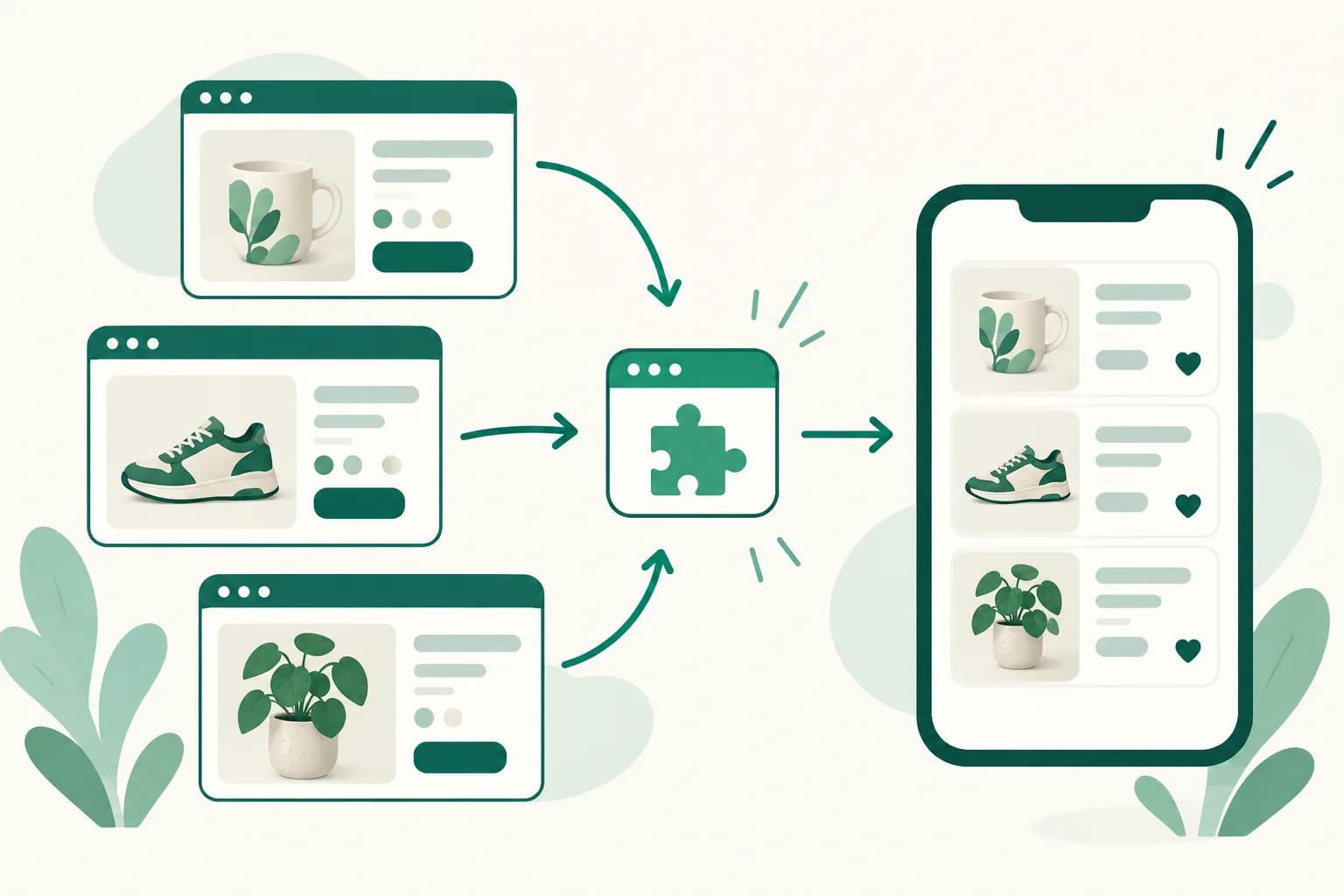
유유피 제휴 링크 도우미 (UUP Affiliate Link Helper) for Chrome on your computer now works on Toss Shopping and Naver Smart Store · Brand Store product pages as well as Coupang. Click 유유피에 담기 (Add to UUP) on the product page, paste the affiliate link you issued yourself, and the product goes onto your page.
What it does
- The 유유피에 담기 (Add to UUP) button now also appears at the bottom right of Toss Shopping product pages and Naver Smart Store · Brand Store product pages. Clicking the UUP icon in the toolbar does the same.
- When you click it, the extension reads the product name and photo from that page and opens the UUP window.
- UUP can't create Toss Shopping or Naver affiliate links for you. So when you paste the link you issued into the link field in the window, we create the product with that link. Unlike Coupang products, there is no link conversion and no Copy affiliate link.
How to use it
- Install UUP Affiliate Link Helper from the Chrome Web Store or update it to the latest version, and sign in to uup.kr in the same Chrome.
- Open a Toss Shopping or Naver store product page and click the 유유피에 담기 (Add to UUP) button.
- Paste your affiliate link into the link field of the window that opens. The field differs by store (see below).
- Check the product name (click it to edit) and the Page to add to, then click Add as product.
The link field differs by store.
- Toss Shopping: this is the Toss Shopping share link field. Paste everything you copied with 링크 발급 (Issue link) on the share link site or in the Toss app, and we keep just the link. Get a share link below the field opens the site where you issue it.
- Naver store: this is the Naver Shopping Connect link field. Issue a link for this product in Brand Connect and paste what you copied. Issue a link in Brand Connect below the field opens Brand Connect.
It's available on the BASIC plan or higher. You don't need a Coupang Partners connection.
Good to know
- For Toss Shopping we accept share links like
toss.im/_m/…, and for Naver we acceptnaver.me/…Shopping Connect links. So that the affiliate link you issued is used as is, we save the pasted link as the product link without swapping it for another address. - If you paste the product page address itself, sales aren't tracked, so we don't save it and show a notice instead.
- UUP doesn't open short links (
toss.im/_m/…,naver.me/…), so it doesn't check whether the link belongs to the product you're adding. Before pasting, make sure yourself that the link was issued for the same product. Only long Toss Shopping share links (toss.shopping/t/…), which show the product number, are blocked before saving if they belong to a different product. - Prices aren't read. Enter one yourself in the editor if you need it. Adding to recipe ingredients or tools still works with Coupang products only.
- If you move to another product within the store, the button may not appear. In that case, click the UUP icon in the toolbar or refresh the page.
- If you already have the extension installed, Chrome may turn it off for a moment and ask whether to allow the new permissions, because it now shows the button on more sites. Once you allow them, it turns back on.
- If you're new to share links and Shopping Connect, our blog posts on Toss Shopping share links and Naver Shopping Connect explain how to issue them.
If you have questions, ask us in the chat at the bottom right of your dashboard.