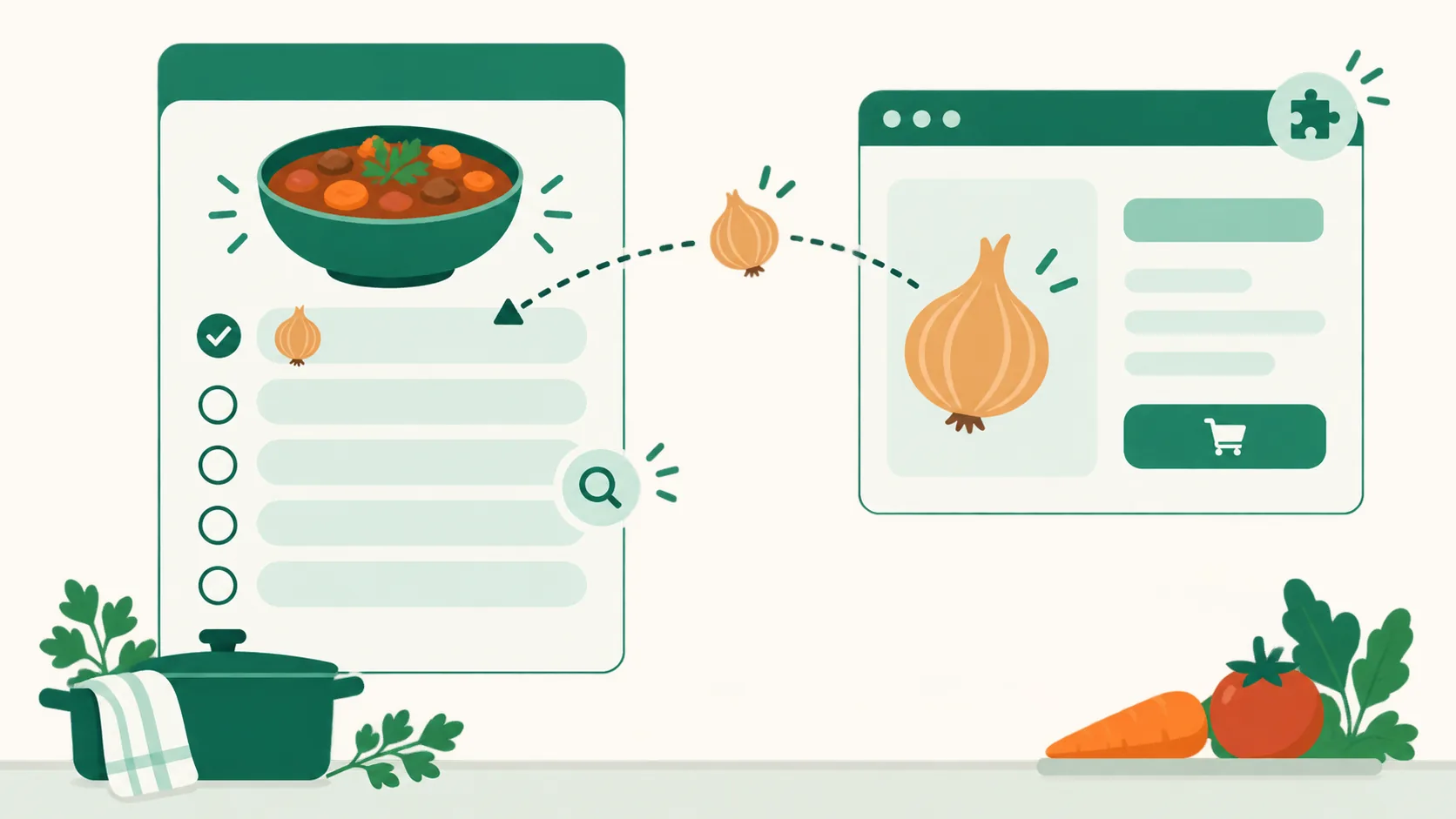
Add Coupang products to your recipe ingredients right from the Chrome extension
There are more ways to put Coupang products on your recipe ingredients. With the Chrome extension 유유피 제휴 링크 도우미 (UUP Affiliate Link Helper), a product you pick on Coupang goes straight onto an ingredient line of your recipe, and ingredients without a link, along with the quick order button, now lead to a Coupang search under your own Coupang Partners account.
What it does
- Pick from the editor: Click 쿠팡에서 고르기 (Pick on Coupang) on an ingredient line without a link, and a Coupang search for that ingredient opens in a new tab. Click 유유피에 담기 (Add to UUP) on the product page you like, and the product goes onto the line you picked.
- Start on Coupang: Click 유유피에 담기 (Add to UUP) on a Coupang product page and choose Add as a recipe ingredient in the window. You can attach it to an ingredient line without a link or add it as a new ingredient.
- Earnings from unlinked ingredients too: On your visitors' screen, ingredient lines without a link get a Find on Coupang link, and the quick order button also leads to a Coupang search under your Coupang Partners account.
- See the conversion status: In the recipe editor, each line shows whether its link is still being converted to a Partners link or the conversion failed, and you can click 다시 변환 (Convert again) on a failed line. Recipe rows in the editor also show the total ingredient clicks.
How to use it
- Install UUP Affiliate Link Helper in Chrome on your computer, and sign in to uup.kr in the same Chrome.
- In the editor of your recipe book page, expand a recipe, or go to the ingredients step of Add recipe.
- Click 쿠팡에서 고르기 (Pick on Coupang) on an ingredient line without a link. A Coupang search opens in a new tab.
- On the product page you picked, click 유유피에 담기 (Add to UUP), then click Add to this ingredient line in the window that opens.
- Back in the editor, check that the line now has the link, photo, and name of the product you picked, and save.
If you found the product on Coupang first, go 유유피에 담기 (Add to UUP) → choose your recipe book page → Add as a recipe ingredient → pick the recipe and the ingredient line (or Add as a new ingredient) → Add to recipe, and it's saved right away.
Two conditions apply.
- Your plan must be BASIC or higher.
- Your Coupang Partners API connection must be finished — check that Connections › Coupang Partners shows the status "Connected".
Good to know
- The ingredient keeps the name you wrote, and the name of the product you picked is shown separately under that line.
- When you add from Coupang into a recipe while the editor for the same recipe is open, the editor reloads by itself if it has no unsaved changes. If it has unsaved changes, it tells you instead of overwriting them.
- Find on Coupang and the quick order search lead to your Partners search only while you meet the conditions. Otherwise the quick order button goes to a regular Coupang search, and ingredient lines get no search link. Visits through a search aren't counted as product clicks.
- In an incognito window, the line you picked in the editor isn't passed to the extension window. Use the start-on-Coupang way instead.
- We removed the 상품 이미지 가져오기 (Import product image) button, which always failed. Photos come along when you use 쿠팡에서 고르기 (Pick on Coupang), 상품 찾기 (Find product), or the extension.
- Sharing from a recipe's detail view now shares that recipe's address.
- Chrome on phones can't install extensions, so the extension features work on computers only. The Chrome extension install & usage guide shows how to install it.
If you have questions, ask us in the chat at the bottom right of your dashboard.