How to Turn Instagram-to-Threads Auto-Sharing On and Off (2026) — Stopping It, Turning Off the Other Direction (Threads to Instagram), and Posting Different Captions per Channel
You post a photo on Instagram and the same post shows up on Threads. Or a short Threads post appears as a suggestion in your Instagram feed or on Facebook. Neither is a bug — it's the sharing settings Meta built between the two apps, and the switch sits in a different place for each direction. This post walks through turning Instagram-to-Threads auto-sharing on and off, turning off the Threads-to-Instagram direction, and hiding the Threads badge on your profile. Then it covers what built-in sharing can't do — it carries the same caption across unchanged — and how to post differently to each channel when that matters.
Before you read: Menu names and locations here are not from Meta's official help center; they summarize public sources (Threads' official account and user guides) as of October 2026. Instagram and Threads change their screens often, so labels may differ slightly by app version. This post is written by the UUP team, which builds five-channel auto-upload including Instagram and Threads.
1. How Instagram-to-Threads auto-sharing gets turned on
When you create a new Instagram post, scroll down the final screen (where you write the caption) and you'll find a "Share to" area. Your connected Threads profile and Facebook appear there as toggles. Threads' official account explained it the same way: when creating an Instagram feed post, turn on "Share to Threads," and choose whether to share just this once or for all posts going forward (Threads official account, checked October 2026).
| Choice | Result |
|---|---|
| This post only | Only the post you're publishing now also goes to Threads |
| All future posts (automatic sharing) | Turned on under "Advanced settings" below "Share to." Every feed post after that keeps going to Threads |
| Off | Next section |
In July 2024, Instagram head Adam Mosseri said Instagram posts should only go to Threads if you turn on cross-posting. Still, some users at the time reported it was on even though they didn't remember turning it on. If your posts are showing up on Threads, check this toggle first.
2. Stopping Instagram-to-Threads auto-sharing
- Start creating a post on Instagram as usual. You don't have to publish — you can stop at the final screen.
- Turn off the Threads toggle in the "Share to" area.
- If a confirmation like "Stop sharing to Threads?" appears, choose "Stop sharing all posts." That applies to future posts, not just this one.
- If Facebook sharing is also on in the same screen, turn it off too — then the post goes to Instagram only.
- Double-check that automatic sharing under "Advanced settings" is off as well.
Posts that already went to Threads don't disappear when you change this. You have to delete them separately in the Threads app.
3. The other direction — when Threads posts show up on Instagram or Facebook
Threads posts being suggested on Instagram or Facebook is a different setting. Turning off the Instagram toggle doesn't touch it.
- Threads profile → top-right menu (≡) → Privacy → "Suggesting posts on other apps" — turn off Instagram and Facebook separately. It's on by default.
- Based on public sources from April 2026, there's also an option to auto-share Threads posts to your Instagram Story (one post at a time, or for all posts). If Threads posts show up in your Story, check this item in Threads settings.
- If you don't want the Threads badge on your Instagram profile, go to Instagram → Edit profile → turn off "Show Threads badge." Only the badge is hidden; the account link stays.
| What you see | Where to fix it |
|---|---|
| Instagram posts also appear on Threads | "Share to" and "Advanced settings" in the Instagram posting screen |
| Instagram posts also appear on Facebook | The Facebook toggle in the same screen |
| Threads posts are suggested on Instagram/Facebook | Threads "Privacy → Suggesting posts on other apps" |
| Threads posts appear in your Instagram Story | Threads' Story auto-share setting |
| A Threads badge shows on your Instagram profile | Instagram "Edit profile → Show Threads badge" |
We don't recommend unlinking the accounts entirely. If you only want to stop auto-sharing, the toggles above are enough.
4. What built-in sharing can't do — the same caption goes across
Most people who turn off auto-sharing don't do it because they dislike it, but because the two channels read differently. Built-in sharing moves your Instagram caption to Threads as-is. The two channels have different rules.
| Threads | ||
|---|---|---|
| Text length | 2,200-character caption | 500 characters |
| Hashtags | Hashtags in the caption | One topic tag rule |
| Tone | Photo description, hashtag blocks | Short, conversational posts |
| Carousel | Up to 10 | 2–20 |
| Video | Reels, 3 seconds–15 minutes | Up to 5 minutes |
A long Instagram caption with a hashtag block reads awkwardly on Threads. Public sources disagree on how long captions are handled on Threads and whether Reels and carousels carry over through built-in sharing — it varies by account and app version, so checking the preview before you share is the most reliable way.
5. When you want to post differently to each channel — UUP auto-upload
Once you turn off Instagram's auto-sharing, you have to go into Threads and post again. If switching apps every time is a hassle, an auto-upload tool lets you schedule to both channels separately from the start.
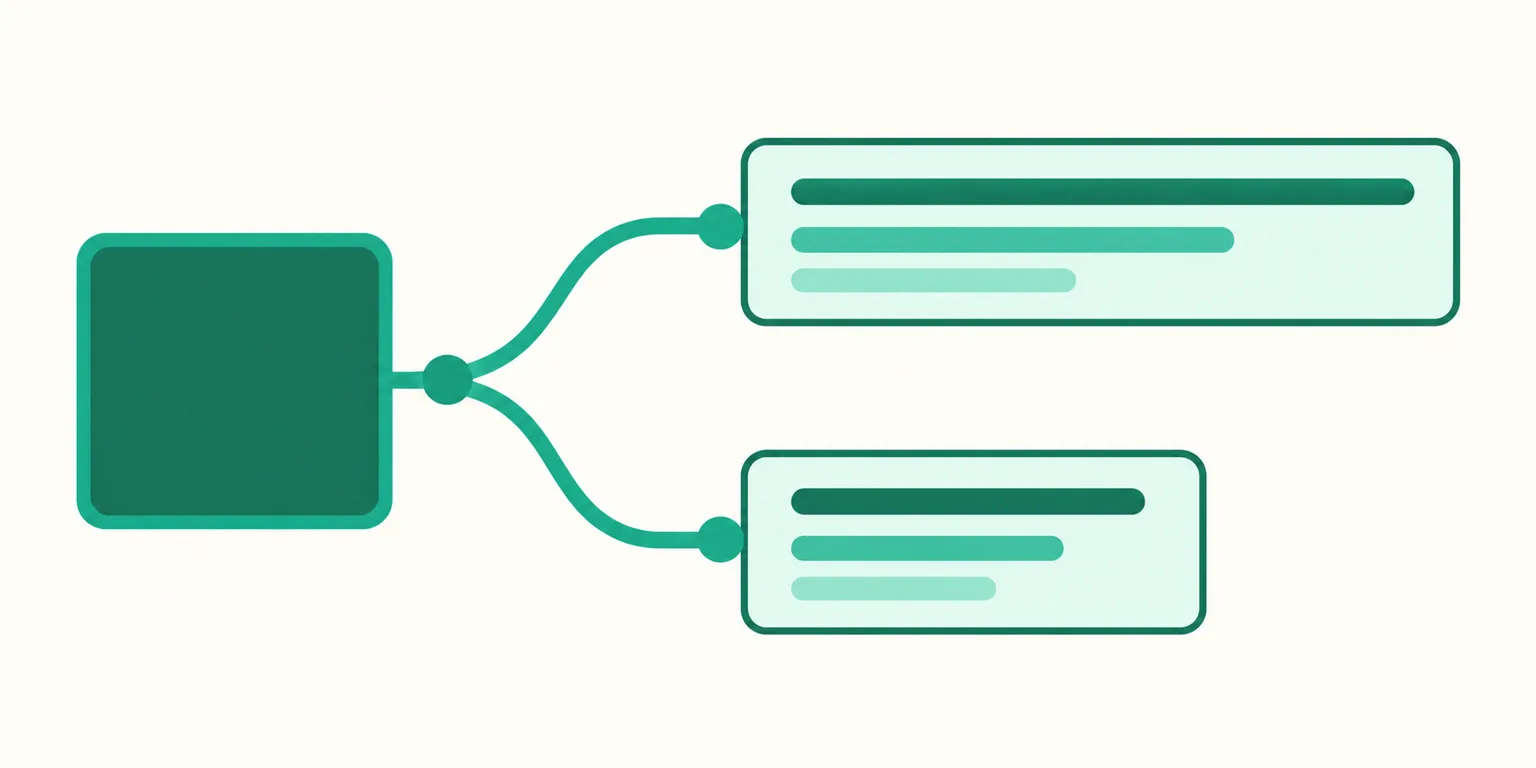
UUP's auto-upload supports five channels: Instagram, Threads, Facebook Pages, YouTube, and TikTok. To be precise, it does not detect a new Instagram post and copy it to Threads. When you check both your Instagram and Threads accounts in the account list on the compose screen, the same photo or video is scheduled as an independent post for each account.
- Per-channel captions — The caption is shared by default, but turning on "Write a separate Threads caption" saves a different caption for Threads only. Put the long description and hashtags on Instagram, and a short post under 500 characters on Threads.
- First comment — Both Instagram (comment) and Threads (reply) can get a first comment right after publishing. Use it for your link page address.
- Threads reply controls — Choose from everyone, accounts you follow, mentioned accounts only, and so on. This can't be changed after posting.
- Channel spec checks — Threads takes JPEG/PNG photos (8MB each), carousels of 2–20, videos up to 5 minutes, and 500 characters of text. Instagram photos must be JPEG, and carousels max out at 10. Anything out of spec is rejected at save time with the reason.
- Edit or cancel per account after scheduling — Editing the Threads post doesn't change the Instagram one.
Plans are Upload Pro at $8.49/month and Ultra at $14.99/month (which also includes Auto DM), and you can try it first with a 14-day trial, no card required. The step-by-step for scheduling one post to five channels and the per-channel differences are in How to cross-upload Reels, Shorts, and TikTok at once.
FAQ
If I turn off Instagram auto-sharing, will posts already on Threads be deleted?
No. The sharing setting only applies to posts you publish from now on. Posts that already went across have to be deleted in the Threads app yourself.
Do I have to unlink my Threads account to stop auto-upload?
No. Just turn off the "Share to" toggle in the Instagram posting screen and the automatic sharing under "Advanced settings." Unlinking also changes other connections like the badge and suggestions, so if you only want to stop auto-upload, the toggles are enough.
Can I post the same photo to Instagram and Threads with different captions?
With Instagram's built-in sharing, the caption goes across unchanged. Either post separately, or use a tool that supports per-channel captions, like UUP auto-upload, to schedule to each account. Scheduling rules on the Threads side are in How to schedule Threads posts.
Further reading
- How to cross-upload Reels, Shorts, and TikTok at once — one video to five channels
- How to schedule Threads posts — native scheduling conditions and what changes with a tool
- How to add links to your Threads profile — the 5-link limit, labels, and click counts
To schedule the same photo to Instagram and Threads with different captions in one go, start for free with a 14-day trial. See pricing on the pricing page.