How to Schedule TikTok Uploads (2026) — The 10-Day Limit on Web Scheduling, When It's Missing on Mobile, Editing a Scheduled Video, and What Changes with a Tool
People say posting time makes or breaks a TikTok. But you can't sit on your phone every evening at peak hours, so you search "how to schedule a TikTok." Then you find the app has no schedule button, the web only lets you pick up to 10 days out, and there's no way to fix a caption typo on a scheduled video. This post covers where TikTok's built-in scheduling works and how far it goes, what to check when it's missing, and what does and doesn't change when you schedule with UUP auto-upload.
Before you read: TikTok's built-in scheduling (time window, account requirements, mobile support) is being rolled out and changed gradually, so it's described here based on public sources (checked October 2026) — mainly the Hootsuite guide and the ContentStudio guide. Your account may look different. The UUP side reflects product behavior as of October 2026. This post is written by the UUP team, which builds five-channel auto-upload.
1. TikTok's built-in scheduling — where, and how far ahead
TikTok's own scheduling works most reliably on the web. Log in to TikTok in a desktop browser and open the upload (TikTok Studio) screen.
- Drop in the video and set the caption, cover, and audience.
- At the posting step, turn on Schedule.
- Pick the date and time and click Schedule.
The conditions that public sources agree on:
| Item | TikTok built-in scheduling (public sources) |
|---|---|
| Time window | 15 minutes to 10 days ahead — later dates are grayed out |
| What | Videos — many sources say carousels (multiple photos), LIVE, etc. are excluded |
| Account | Most sources say the option shows on Creator or Business accounts |
| Time zone | Follows the device (browser) time zone — it drifts when you travel or use a VPN |
| Editing after scheduling | Most sources say you can't edit the caption etc. and must delete and reschedule |
The 10-day limit is the wall people hit most. If you film two weeks of content at once, you'll be re-scheduling the next 10 days every Sunday.
2. When the schedule button is missing in the mobile app
Sources disagree on mobile scheduling. Some accounts see a Schedule video toggle under "More options" (or advanced settings) at the bottom of the posting screen; others say it works in the separate TikTok Studio app; and Hootsuite's guide says that as of 2026 the main app can't do it. It's best read as a feature TikTok rolls out gradually by account and region. Check in this order:
- Update the app and expand "More options" at the bottom of the posting screen.
- Check your account type — if it's a personal account, switch to Creator or Business and look again (Settings → Manage account).
- If it's still missing, schedule in the TikTok Studio app or on the desktop web. The desktop view in a phone browser isn't an official path, and results are inconsistent.
Sometimes the cause isn't the account but the post. Many sources say web scheduling doesn't accept photos or carousels either, so for a photo post your only options are posting now or saving a draft.
3. How to edit or cancel a scheduled TikTok
If you scheduled on the web, you'll find the scheduled video in TikTok Studio's post management. Changing the time or deleting happens there, but public sources agree that editing the content itself — like fixing a caption typo — is blocked. So:
- If only the time needs to change — change it in scheduled-post management (if the menu isn't there, re-schedule as below).
- If the content needs to change — delete the scheduled post, upload the original file again, and reschedule. That's why you shouldn't delete the original file.
If a video didn't go up at the scheduled time, first check the time zone (based on the device you scheduled from) and the account status (whether you're under a Community Guidelines restriction).
4. What changes when you schedule TikTok with UUP auto-upload
UUP auto-upload is a scheduling tool that posts through TikTok's official Content Posting API. TikTok connection opened to members on 2026-09-04, and on 2026-09-14 TikTok's Direct Post audit was approved, opening Post directly as well. Connect your TikTok account under Connections → Channels in the dashboard, then create a new post in the Auto-upload menu.
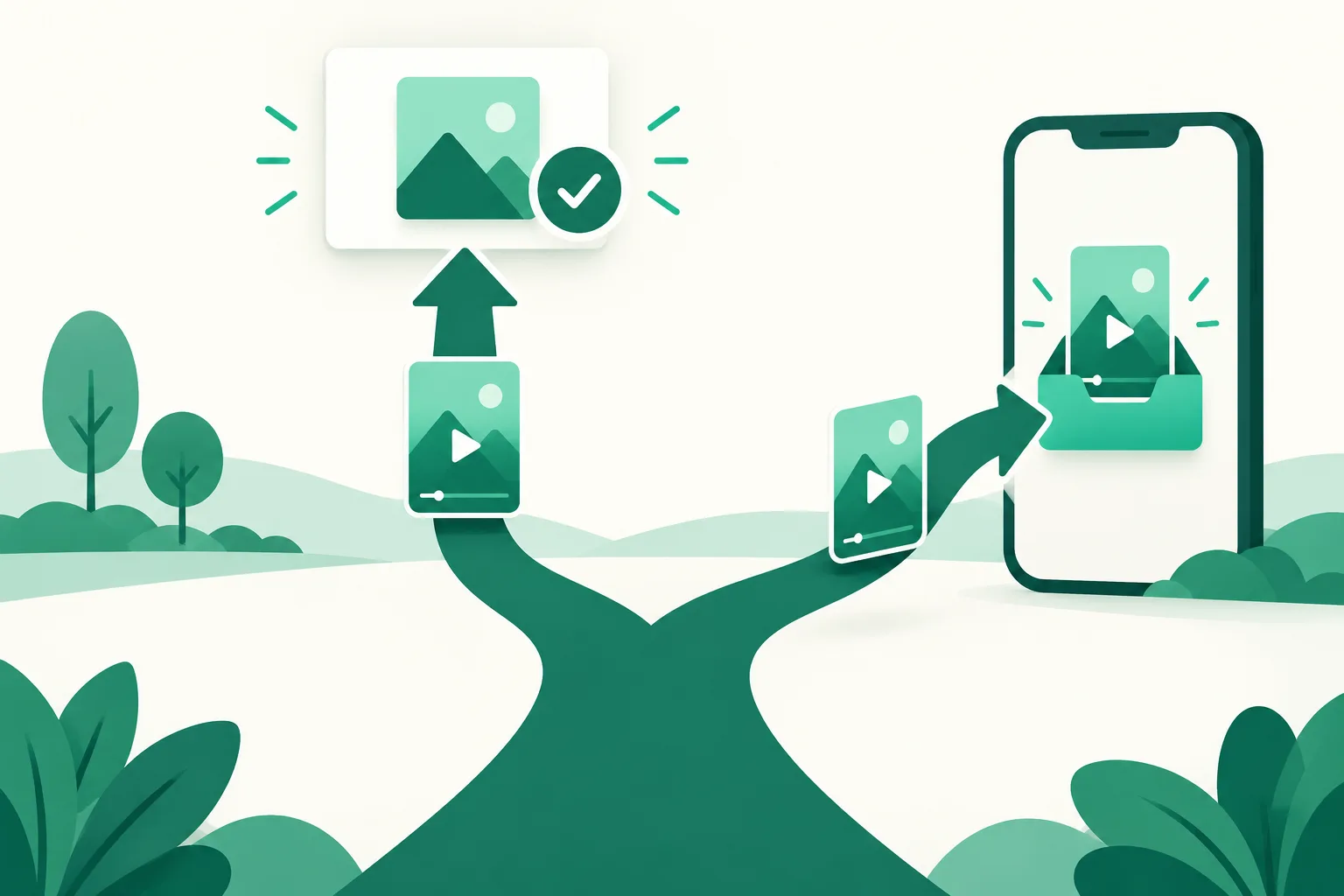
There are two posting modes. New posts default to "Post directly."
| Post directly (default) | Send to TikTok inbox | |
|---|---|---|
| At the scheduled time | UUP posts directly to TikTok | The video goes only as far as the TikTok app's inbox |
| Final post | Not needed | You tap it yourself in the app |
| Caption, audience, interactions | Chosen in UUP's editor | Entered in the app |
With "Post directly," you set the items TikTok requires right in the editor:
- Audience — there's no default. You can only pick from the options TikTok allows for that account, and the post won't schedule until you pick one.
- Allow comments, Duet, Stitch — the switches start off, and only what you turn on is sent as allowed.
- Commercial content disclosure — turning it on adds a "Promotional content" label to the video, and you pick Your brand / Branded content. Branded content can't be posted as "Only me."
Compared with TikTok's built-in scheduling:
| Item | TikTok built-in | UUP auto-upload |
|---|---|---|
| How far ahead | Up to 10 days | No upper limit (only past times are rejected) |
| Editing after scheduling | Delete and reschedule | Edit or cancel per account |
| Same video on other channels | Post separately | Instagram Reels, Shorts, Threads, and a Facebook Page in one schedule |
| Time basis | Device time zone | You pick the time in Korea time (KST) |
What doesn't change, for the record:
- You can't set a cover image — TikTok's API doesn't accept an image cover. If you must choose the cover, send it to the inbox and finish in the app.
- No first comment — TikTok has no comment API. Send people to your TikTok profile link instead.
- Photo and carousel posts aren't in the editor yet — only videos can be scheduled.
- Videos are MP4 or MOV, up to 300MB and 30 minutes, and TikTok requires both width and height to be 360–4096px; anything outside that is flagged when you save. The caption limit is 2,200 characters.
- Monthly scheduled posts have a per-plan cap (Upload Pro 300, Ultra 600, trial 100).
5. Plans and how to start
| Plan | Monthly price | TikTok auto-upload |
|---|---|---|
| Upload Pro | $8.49 | ✅ |
| Ultra (includes Auto DM) | $14.99 | ✅ |
| 14-day trial | Free (no card) | ✅ 100 scheduled posts |
If you schedule one or two posts a week, TikTok's built-in scheduling is enough. If you need to schedule more than 10 days out, send the same video to Reels and Shorts too, or often edit what you've scheduled, a tool starts to make sense. The per-channel differences for multi-channel scheduling are tabled in How to cross-upload Reels, Shorts, and TikTok at once.
FAQ
How far ahead can you schedule a TikTok?
TikTok's built-in feature allows 15 minutes to 10 days ahead, according to public sources. UUP auto-upload sets no upper limit on how far ahead you schedule and only rejects past times. There is, however, a monthly cap on scheduled posts (per plan).
Do scheduled uploads get fewer views?
We found no official evidence that TikTok treats scheduled posts less favorably. UUP's "Post directly" also goes through TikTok's official API, and once it's up it's the same kind of post as one you uploaded in the app.
I scheduled with UUP, but it's not on my TikTok profile.
If the posting mode was "Send to TikTok inbox," that's expected — the video is waiting in the app's inbox, so open it and tap post. If it was "Post directly," check whether you chose "Only me" as the audience. If the schedule failed, the auto-upload list shows the reason and a retry button.
See also
- How to cross-upload Reels, Shorts, and TikTok at once — what changes per channel
- How to add a TikTok profile link — follower requirements and what to put in one link
- How to schedule YouTube Shorts — when a video counts as a Short, and why the cover won't stick
To schedule TikToks without the 10-day limit and send Reels and Shorts in the same schedule, start free with a 14-day trial. Prices are on the pricing page.