How to Pin a Comment on YouTube (2026) — Why Pinning Fails or Doesn't Show, Editing and Unpinning, and Pinning on Scheduled Uploads
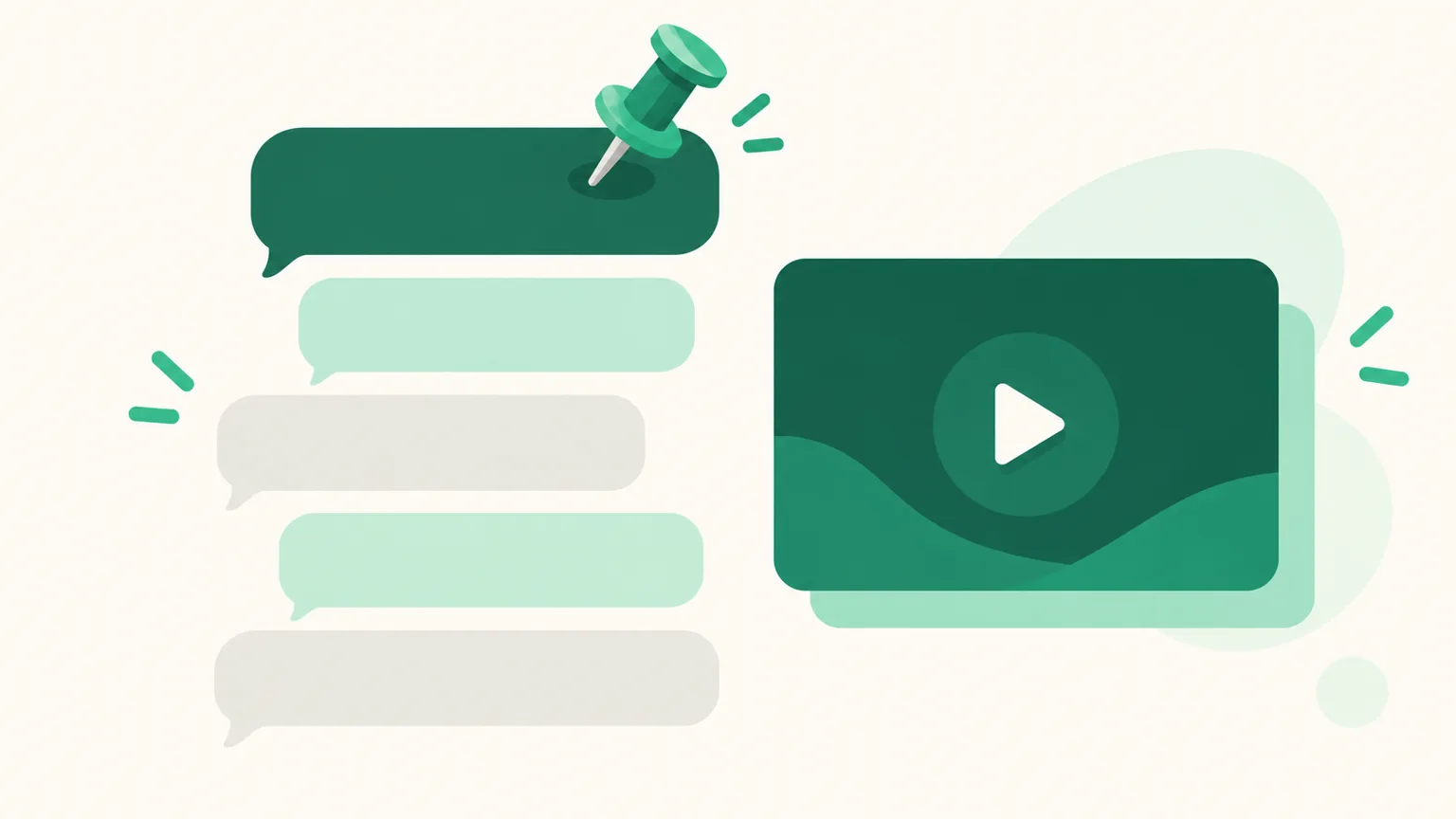
A YouTube pinned comment is the single comment that sits at the top of the comment section with a "Pinned by" label. It's a good place for product details, common questions, or a pointer to your next video. In practice people get stuck on "I can't find the Pin option," "I pinned it but viewers don't see it," and "I want it ready on a scheduled upload." This post walks through how to pin a comment on YouTube based on YouTube's official Help Center, why pinning fails or doesn't show, how to edit, replace, and unpin, and finally a realistic order for pinning a comment on a scheduled upload.
Before you read: The pinning steps and limits come from YouTube Help Center pages — Post comments & engage with others, Choose comment settings, Share links with viewers, Schedule a video — and the YouTube Data API docs (checked 2026-10). YouTube changes menus and policies without notice, so check the Help Center for the current state. This post is written by the UUP team, which builds YouTube auto-upload and first-comment features.
1. How to pin a comment on YouTube — desktop and mobile
There's one prerequisite. The Help Center says that to pin comments, you need to allow advanced feature access for your channel, and that it can take up to 24 hours for advanced features to apply across the channel after you turn them on. If the Pin option is missing entirely, check this first.
Steps (per the Help Center — the desktop and mobile instructions are the same)
- Sign in to YouTube with your channel account.
- Under your video, choose the comment you want to pin — your own comment or a viewer's both work.
- Next to the comment, tap More (⋮) → Pin.
- Confirm by selecting Pin again.
On desktop, the pinned comment shows at the top with a "Pinned by [creator name]" label and your channel name. The Help Center notes you can also manage comments in the YouTube Studio app, but the same page doesn't list pinning steps for Studio. The most reliable place is the comment list on the video's watch page.
| What you want | Where | Menu |
|---|---|---|
| Pin a comment | Comments on the watch page | More → Pin → Pin |
| Unpin | Same place | More → Unpin |
| Change the pinned comment | Same place | Pin another comment — the old one is replaced automatically |
| Check comment settings | YouTube Studio → Content → video → Show more | "Comments and ratings" |
2. When you can't pin a comment — a checklist
If the Pin option is missing or comments can't be posted at all, go through these in order. Each cause is backed by the Help Center.
- Have you allowed advanced feature access? It's the prerequisite for pinning. If you just turned it on, allow up to 24 hours.
- Is it your channel's video? Pinning is described as something creators do on their own videos. The option isn't there on other people's videos.
- Is the video private? The Help Center says you can't leave comments on private videos. No comments means nothing to pin. A video with scheduled visibility is also private until its publish time (section 4).
- Did you turn comments off or limit them to subscribers or members? With these settings, some people can't comment. Check in Studio → Content → video → Show more → "Comments and ratings."
- Is the video set as made for kids? Comments are disabled on videos set as made for kids, and in that case you can't change the comment setting.
3. When the pinned comment doesn't show — and editing, replacing, unpinning
Pinned, but "viewers can't see it" usually comes down to which screen they're looking at.
- On mobile, viewers need to tap to expand the comment section. The Help Center says exactly that.
- A pinned comment doesn't always appear in the comment preview. The collapsed preview under the video may show a different comment; when the full comment list is opened, the pinned comment shows first.
- Viewers can sort comments by Top comments or Newest first. The official docs don't explain how sorting affects the pinned comment, so to check, open the full list in a signed-out window.
Editing, replacing, and unpinning work like this.
| Situation | How | Good to know |
|---|---|---|
| Edit the pinned comment | If you wrote it, More → Edit | You can't edit a viewer's comment. The docs don't say whether the pin survives an edit, so check after saving |
| Replace with another comment | Pin the new comment | Only one pin at a time — pinning a new one replaces the one already pinned |
| Unpin | More → Unpin | You can unpin anytime, and the comment returns to its original position |
| Delete the pinned comment | More → Delete | Deleting removes the pin too. You'll need to write and pin again |
4. Pinning a comment on a scheduled upload — not before it's public
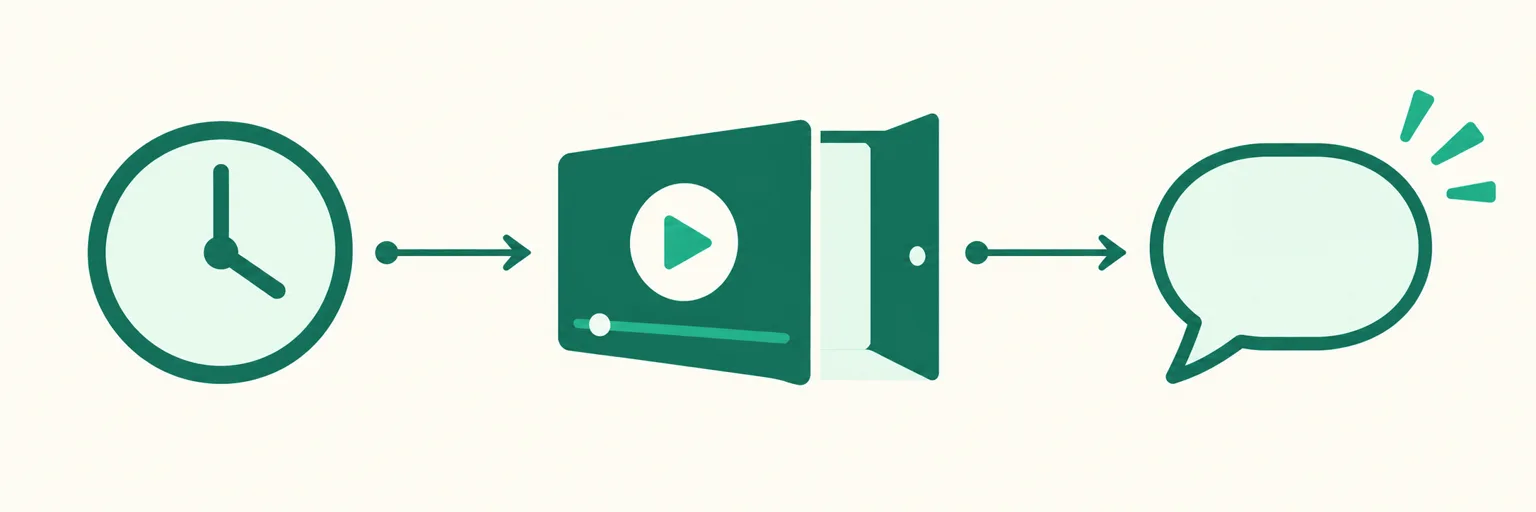
This is where people searching for "YouTube scheduled upload pinned comment" get stuck most. Bottom line: you can't pin a comment in advance on a YouTube video with scheduled visibility. Two lines from the official docs explain why.
- YouTube scheduling works by uploading the video as "Scheduled" or "Private" and making it public at the set time (Schedule a video).
- You can't leave comments on private videos (comments Help Center).
So the only order is "public → write comment → pin." You can show up at publish time to write and pin it yourself, or have a comment posted automatically right after the video goes public and press Pin later.
What automation can and can't cover. YouTube's official API (YouTube Data API) can post comments (commentThreads.insert), edit, delete, and change moderation status, but it has no way to pin a comment (checked 2026-10 — the commentThreads and comments docs). Whatever outside tool you use, pinning stays a step the creator presses after the video is public.
UUP auto-upload (Dashboard → Auto-upload) handles the part before that.
- UUP uploads the video itself at the scheduled time. In the YouTube fields, set Visibility to Public or Unlisted and leave Scheduled visibility empty. At the scheduled time the video goes up with that visibility, and right after, UUP posts the first comment under your channel name. No need to wait around for publish time — once it's up, just pin that comment.
- If you fill in Scheduled visibility, the first comment won't be posted. The video is uploaded as private and YouTube makes it public at the set time, and YouTube blocks comments while it's private. The screen says so under the first-comment field ("On YouTube the first comment is added only to videos uploaded as public or unlisted"), and in that case the video stays as it is while you get a notification that the first comment failed. Also remember the default visibility is Private.
- The first comment can be up to 500 characters in the input field.
- Accounts that connected YouTube before September 13, 2026 need to reconnect once to unlock the first-comment field (Connections → Channels), because comment permission has been requested at connection since that date.
- UUP does not pin the comment. That's the API limit above.
| YouTube field setup | State at upload | UUP first comment | Pin |
|---|---|---|---|
| Visibility Public/Unlisted + Scheduled visibility empty | Uploaded as public at the scheduled time | ✅ posted right after | Yourself, after it's up |
| Scheduled visibility time set | Uploaded private, made public at that time | ❌ failure notification | Write and pin yourself after it's public |
| Visibility Private | Private | ❌ failure notification | Yourself, after switching to public |
Auto-upload is available on Upload Pro ($8.49/month), Ultra ($14.99/month, includes Auto DM), and the 14-day trial that starts at sign-up (no card required). It isn't included in DM Pro. If you post the same video to Instagram Reels and TikTok too, you can schedule them together on one screen.
5. Links in a Shorts pinned comment aren't clickable
Many people put a product link in their pinned comment, but Shorts are the exception. To reduce spam and scams, YouTube makes URLs in Shorts comments and Shorts descriptions unclickable (Share links with viewers, checked 2026-10). Links in comments and descriptions on long-form videos are clickable, but that also requires advanced feature access on the channel.
| Video type | Link in pinned comment | Alternative |
|---|---|---|
| Regular (long-form) video | Clickable (advanced features needed) | Put it in the pinned comment |
| Shorts | Not clickable | Related video, channel profile links |
How to send Shorts viewers to a Coupang product is covered in How to add a Coupang link to YouTube Shorts. If you include a link, add the Coupang Partners (Korea's largest affiliate program) disclosure text too (Coupang Partners disclosure text).
FAQ
How many comments can I pin?
One at a time. Pinning another comment replaces the current pinned comment. If you want several notes, split them into lines within one comment.
Can I pin a comment in advance on a video with scheduled visibility?
No. A video with scheduled visibility is private until its publish time, and you can't comment on private videos. Write and pin the comment after it goes public. With UUP auto-upload, set visibility to Public or Unlisted and upload at the scheduled time — the first comment is posted automatically right after, and you just press Pin.
I can't see the Pin option at all
Most likely the channel's advanced feature access is off. Even after turning it on, it can take up to 24 hours to apply. If it's still missing, check that it's your channel's video and that it isn't private, set as made for kids, or has comments turned off.
See also
- How to schedule YouTube Shorts — the exact steps for scheduled visibility in Studio
- How to add a Coupang link to YouTube Shorts
- Post Reels, Shorts, and TikTok at once
To try scheduled uploads and first comments for YouTube, Instagram, and TikTok on one screen, start free with the 14-day trial. Channel details are on the features page.